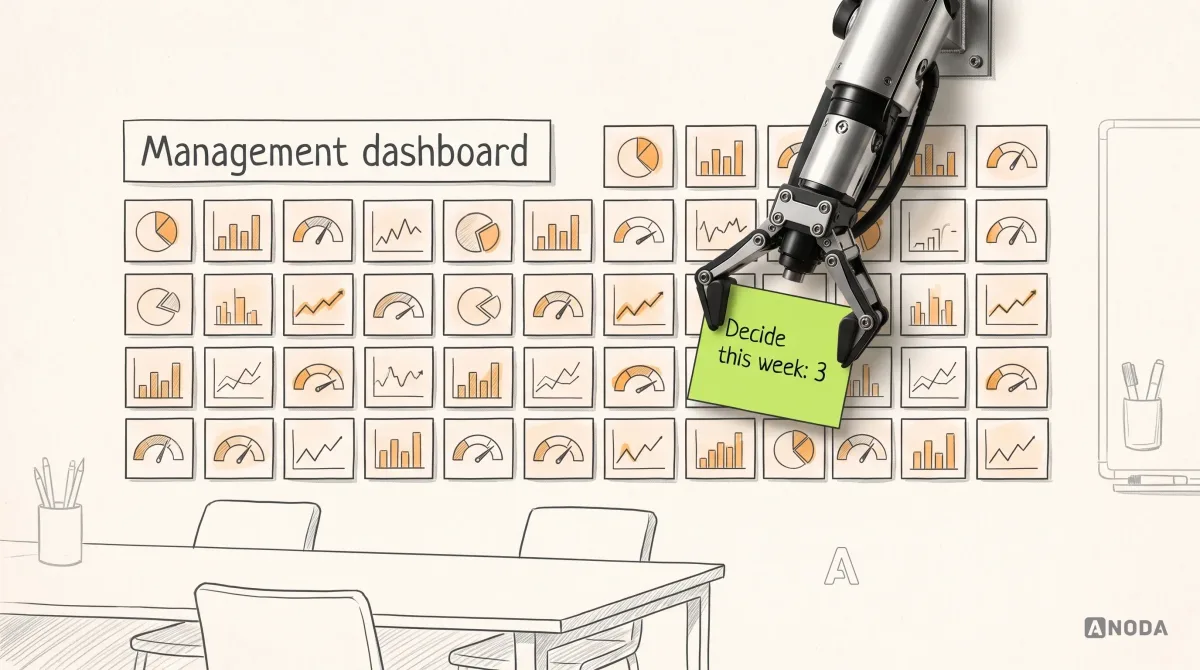
How to Design a Management Dashboard That Supports Decisions
Learn how to design a management dashboard around executive decisions, useful KPIs, clear context, and action paths instead of a wall of charts.
Design the screens your staff use all day — pricing a job, sending a crew, checking a site, tracking equipment, signing off spend — so each job takes fewer clicks, fewer spreadsheets and fewer calls to the office.

Operational tools that make the daily job faster, in the office, on site and on the floor.
The structure that holds many modules and departments together.
ERP & Internal Tools Design
The screens where staff do one operational job, fast.
Not included
Internal tools go wrong when screens follow the database instead of the work. The design starts from what staff actually do, step by step, and where they do it.
Each operational job step by step: who does it, where, and with what.
Forms that follow the work, with defaults, line items and saved drafts.
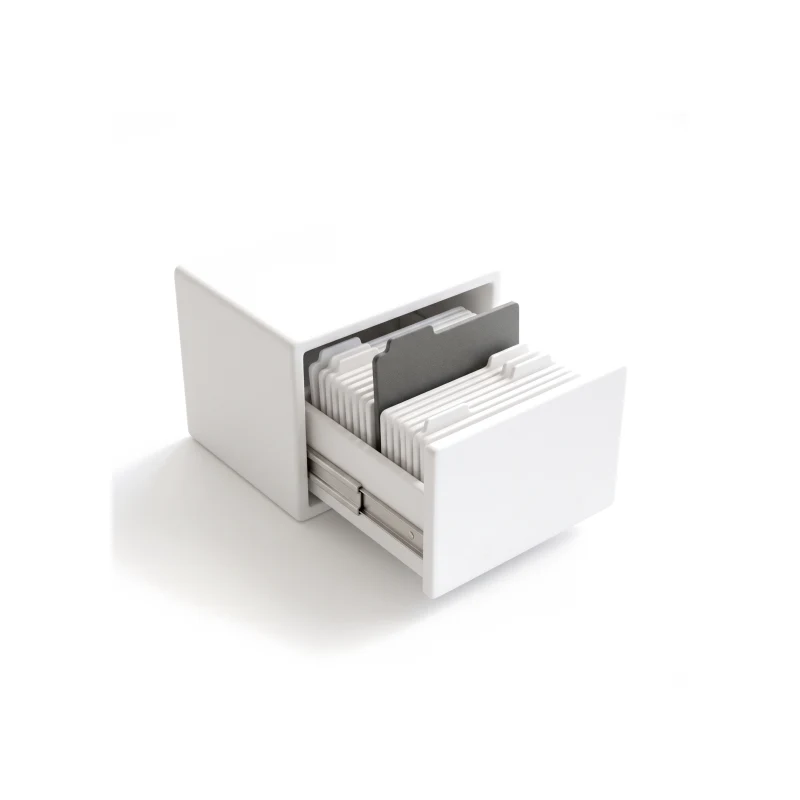
Asset and job lists with filters, bulk actions and saved views.
The same job on a tablet, one-handed, with a patchy signal.
You receive
Internal tools design is measured in the work people repeat: the same estimate, inspection or approval, many times a shift. Every screen is built for speed on a good day and clarity on a bad one.
Estimates, inspections and live operations — screens people use through the whole working day.
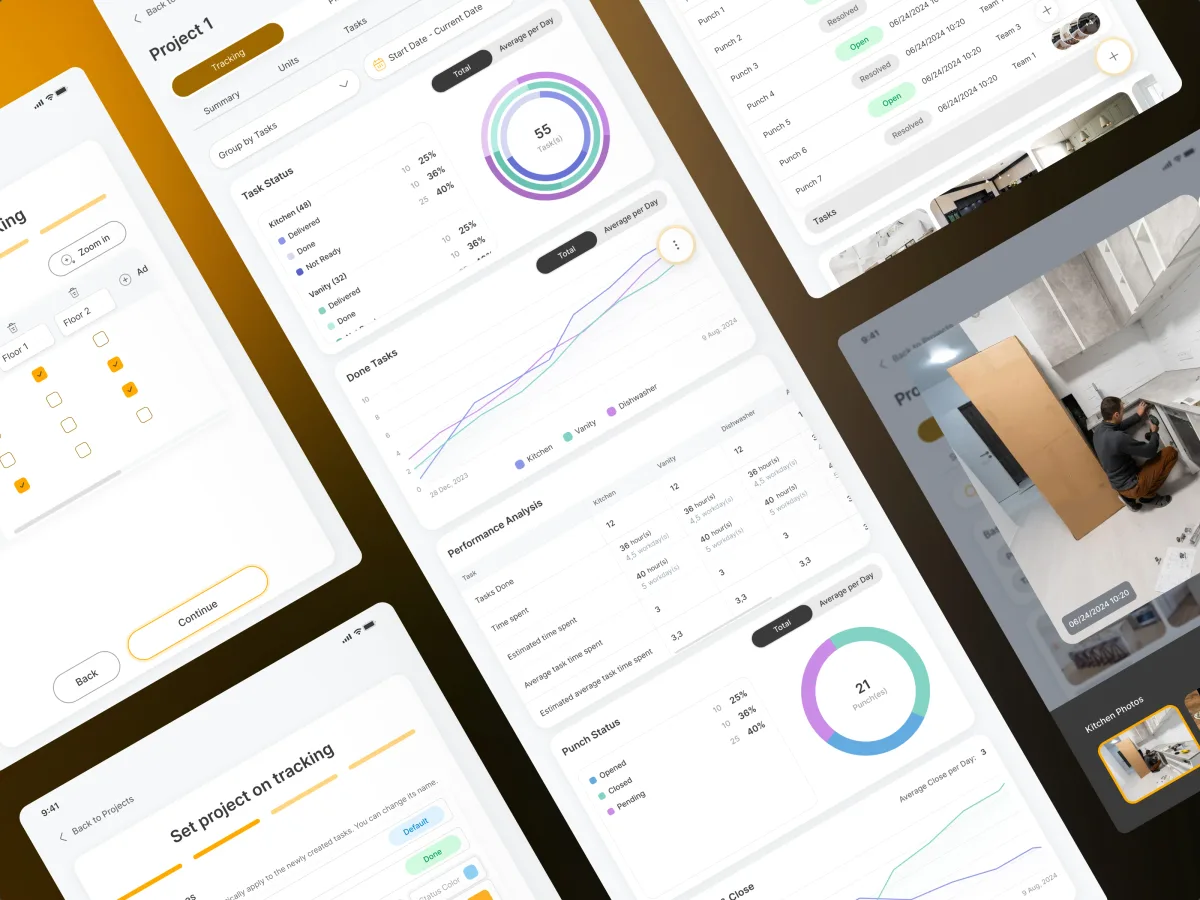
PropTech · Construction · Tablet app
Designed a tablet-first platform for kitchen installation: estimators plan and price, site managers track each unit, teams close punch lists and homeowners follow progress.
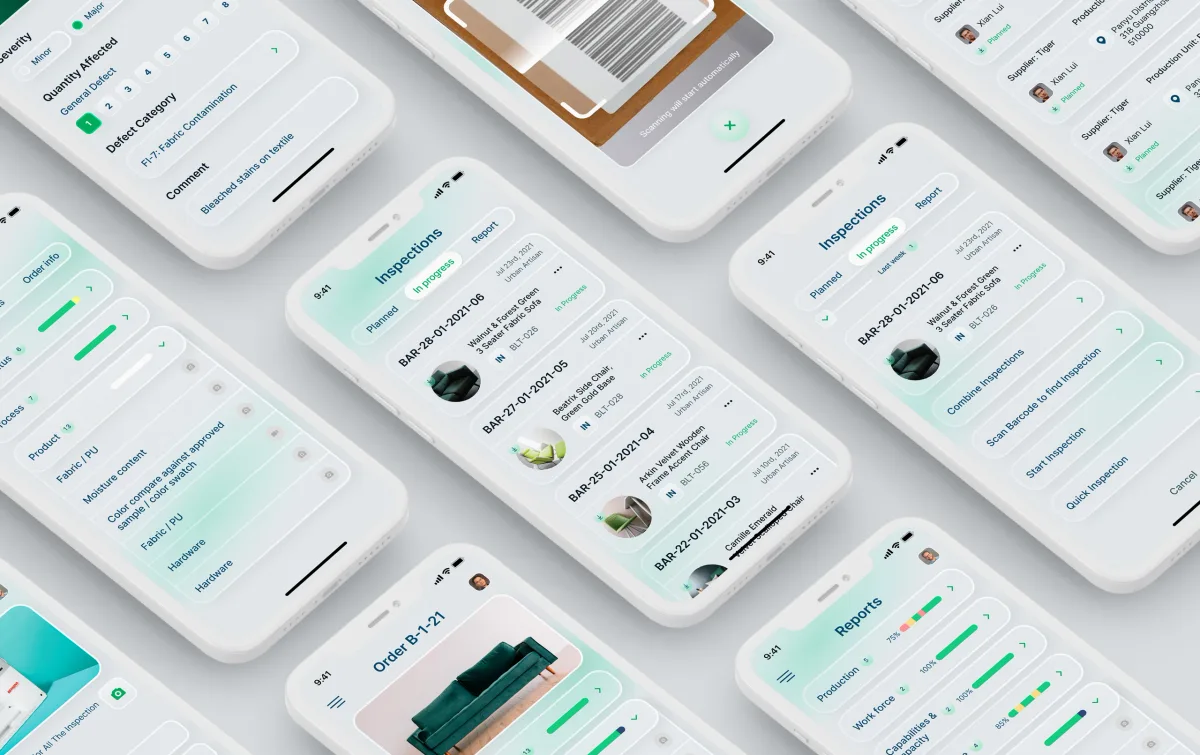
SaaS Product Design · Quality control
Designed a quality and compliance product: inspections and defects captured on a phone, planning, reports and corrective actions on the web.
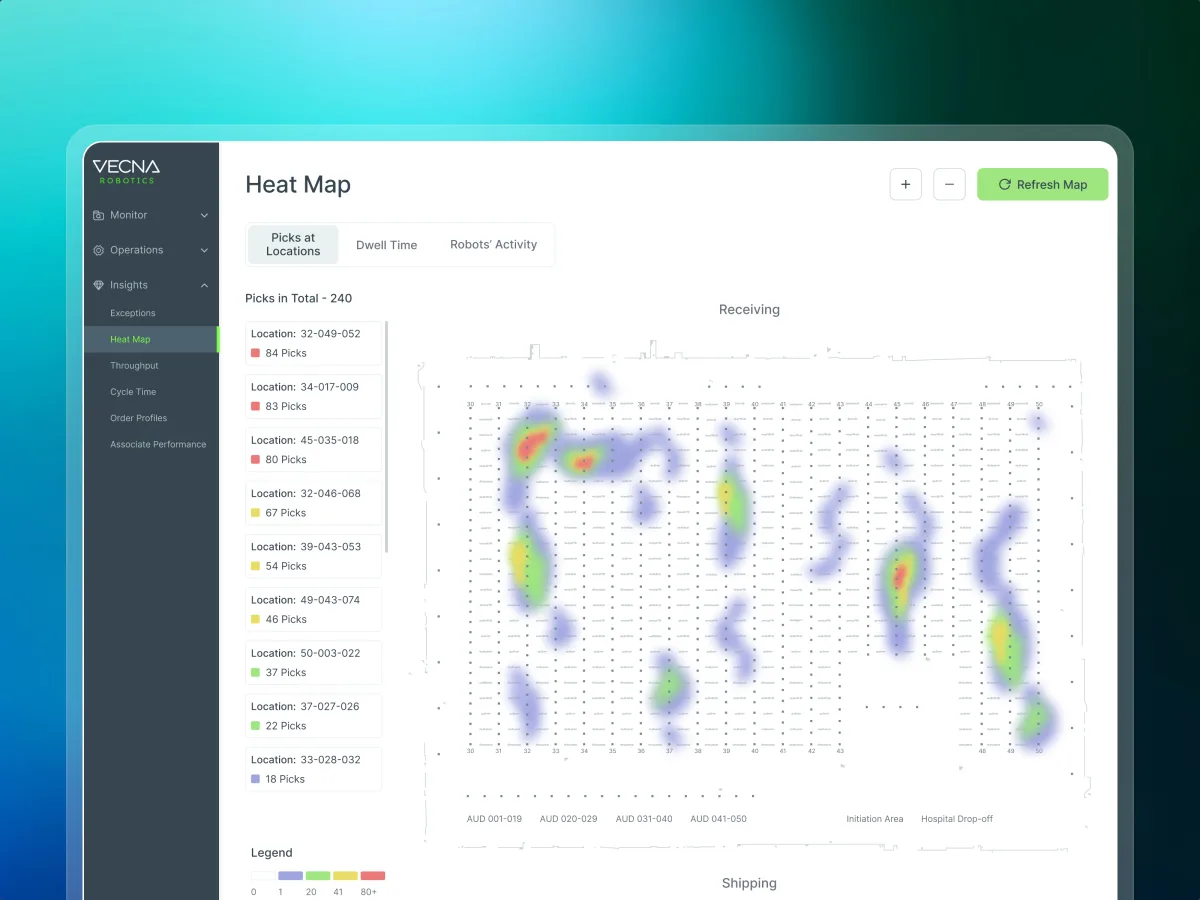
Robotics · Warehouse ops · Web SaaS
Redesigned a warehouse operations console — robot setup, pick activities, exceptions and shift analytics — for operations teams working at a desk or with a tablet on the floor.
It fits when your own staff run the business through the software, and every wasted click repeats all day.
Estimates, work orders, inspections or approvals, many times a day.
People copy data between the system, sheets and chat to finish the job.
On site, on the floor or on a tablet, not only in the office.
Your ERP or database remains; the screens on top of it change.
A different starting point
Tell us which job your team repeats most and where it slows them down. We will come back with the service that fits and a realistic next step.
Internal tool work usually goes module by module, through one of our services, starting where staff lose the most time. Its proposal sets the terms.
ANODA organised a complicated installation workflow into screens we could review role by role. Estimates, project progress and punch lists were considered together, which gave us a concrete way to discuss how the proposed product should support work on site.
Tell us what the tool is for, who uses it and where, and which spreadsheets it has not replaced.
Message received.
Within 15 minutes, we’ll email you initial feedback and follow-up questions.
Learn how to design a management dashboard around executive decisions, useful KPIs, clear context, and action paths instead of a wall of charts.
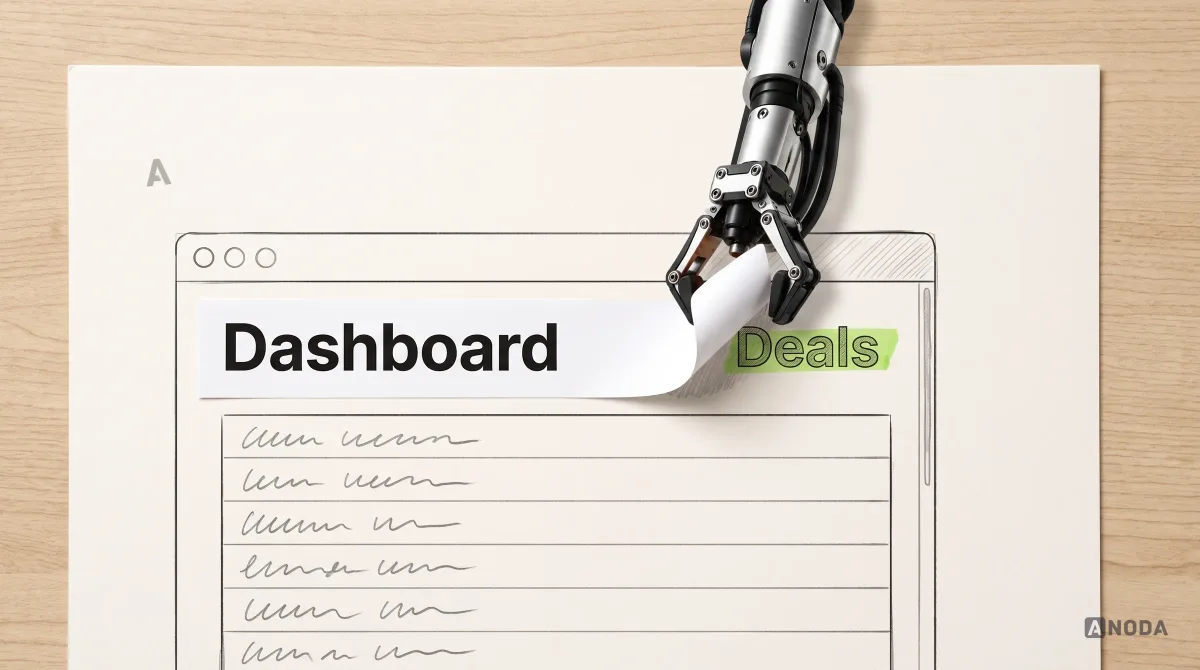
Learn what a website dashboard is, which dashboard types fit different decisions, and how to design useful data views without overwhelming users.
Ask to see an operational job designed end to end — an estimate, an inspection, a work order — with the states around it: a draft, a rejection, a missing field, no signal on site. Ask whether the team spoke to the staff who do the work, how it handled dense tables, and what it did on a tablet. Ask which tools were live, and what was redesigned rather than started fresh. Our Cabinit, Qarma and Vecna cases show that range.
Task and workflow maps with the people who do the work, the roles and permissions, the forms for estimates and work orders, inspection and checklist flows, records and tables with filters and bulk actions, the field or tablet views, and the UI with a clickable prototype. Cost and timeline depend on the number of jobs and roles, how dense the data is, the platforms, and how much of the current tool stays. Work is often phased by module and set in the proposal for the service you start with.
Office staff who estimate, plan and schedule; site managers and field teams who inspect, report and close tasks; warehouse and operations leads who watch the work live; approvers and finance who sign off; administrators who manage records, assets and access. The workflows are the ones that run the business: quoting, raising and assigning work orders, inspecting against a checklist, logging defects, keeping asset records current, approving and closing work.
It depends on what you know. A UX Audit shows where the current tool slows people down; Usability Testing lets you watch staff use it. Web App Design and Mobile App Design cover the office and the field, Dashboard Design the managers' view, and Product Redesign replaces a tool while staff keep working. When several modules and departments need one structure first, Enterprise UX Design comes before any single job. Web App Development builds the result.
With the task, not after it. Every screen is drawn for a saved draft, a request waiting for approval, a rejection with its reason, a missing required field, no signal on site, a record someone else changed, an overdue task, a bulk update and totals that do not reconcile. Permissions follow who approves what and up to which amount. Tables are designed for real volume — hundreds of rows, long codes, empty fields — and forms keep the defaults and shortcuts power users rely on.
Time with the people who do the work — in the office, on site, on the floor — and sample documents: estimates, work orders, inspection forms. Access to the current system, or screenshots and exports if that is easier. An operations lead and a product owner with the authority to decide, and the engineers who know the ERP or database behind the tool and what it lets us change.
Cabinit, a kitchen-installation platform — 250 unique screens and 5 roles in one system. Qarma, a quality and compliance product — a web platform and one inspector app, designed across releases in 2021 and 2022. Vecna Robotics, a warehouse operations console — 192 unique screens. Each case study follows a working job — an estimate, an inspection, a robot setup — through the people and states around it.
Yes. We design the screens on top of the system you run, not a new engine: Qarma's design grew release by release through 2021 and 2022. Our designers work in your files, next to your engineers and the staff who use the tool each day, and hand over the task flows, the matrix and the components.