In short
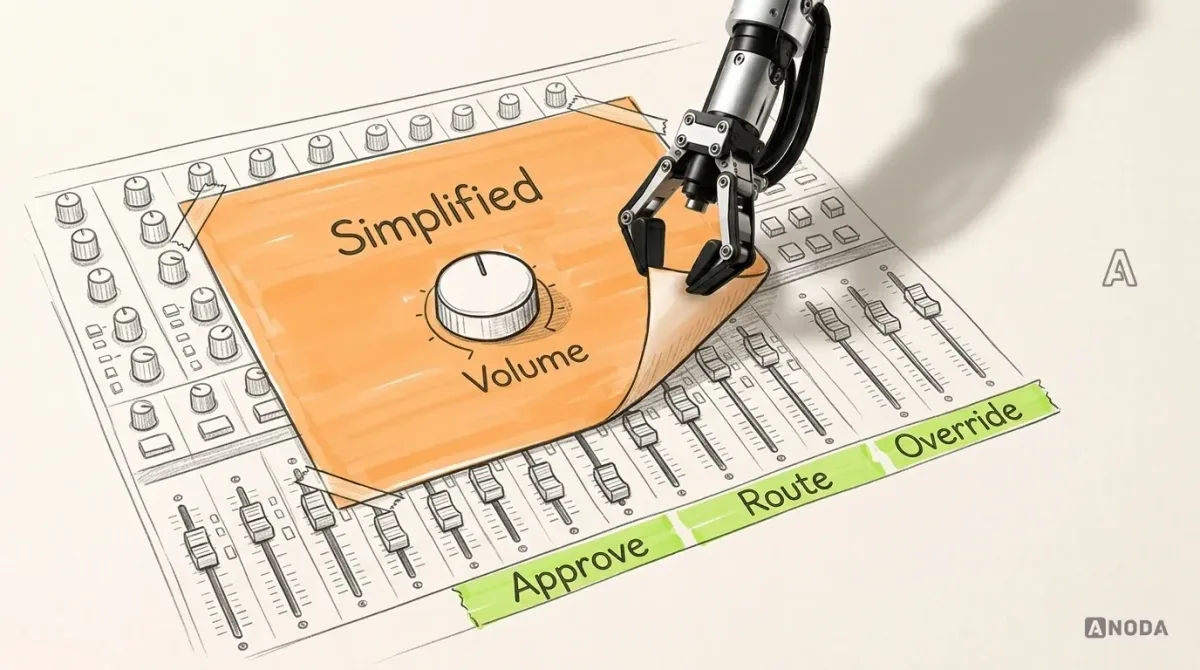
Construction software rarely fails on screens. It fails between them, where a site manager with a phone translates the office estimate into crew work and crew reports into client updates. Give each job one address from project to unit to task, release only approved scope to the crew, let the tablet record unfinished work, give every punch item a name, date and proof, and show the client a bounded update. One illustrative unit, followed end to end.
In this article
- Give every job an address before you draw a screen
- An estimate in progress is not a work order
- On the tablet, the crew records what isn’t done
- A punch item needs a name, a date and proof
- When the tablet loses signal halfway through a report
- Close the punch, then tell the customer only what they need
- Walk every role through the same unit before engineering starts
- What we designed for Cabinit, and where our part stopped
- Where to start
Construction management software works when one installation job keeps the same address wherever it travels: the estimate in the office, the release to the site, the task on the crew’s tablet, the punch item that blocks completion and the progress line the client reads. Every role sees a different slice of the job. Nobody should ever see a different job.
In a job like this, the failure sits between the screens. The office has a handsome estimate builder. The crew has a tablet app with big buttons. The client has a portal with a percentage on it. And between all three stands a site manager with a phone, translating one into the other from seven in the morning, on your payroll.
That phone is the real system. Everything else is decoration.
The cost never shows up as a line item. It shows up as a crew driving back to a building for one fitting nobody ordered, a client ringing to ask why the progress bar hasn’t moved for two weeks, and an office re-typing what the tablet already knew. You bought software so people would stop being the integration layer. If they still are, you paid for the screens and kept the problem.
So here is one job, followed from estimate to handover. Every name, number, rule and state in it is illustrative, invented to show the mechanics. It is not a record of any client’s process.
Give every job an address before you draw a screen
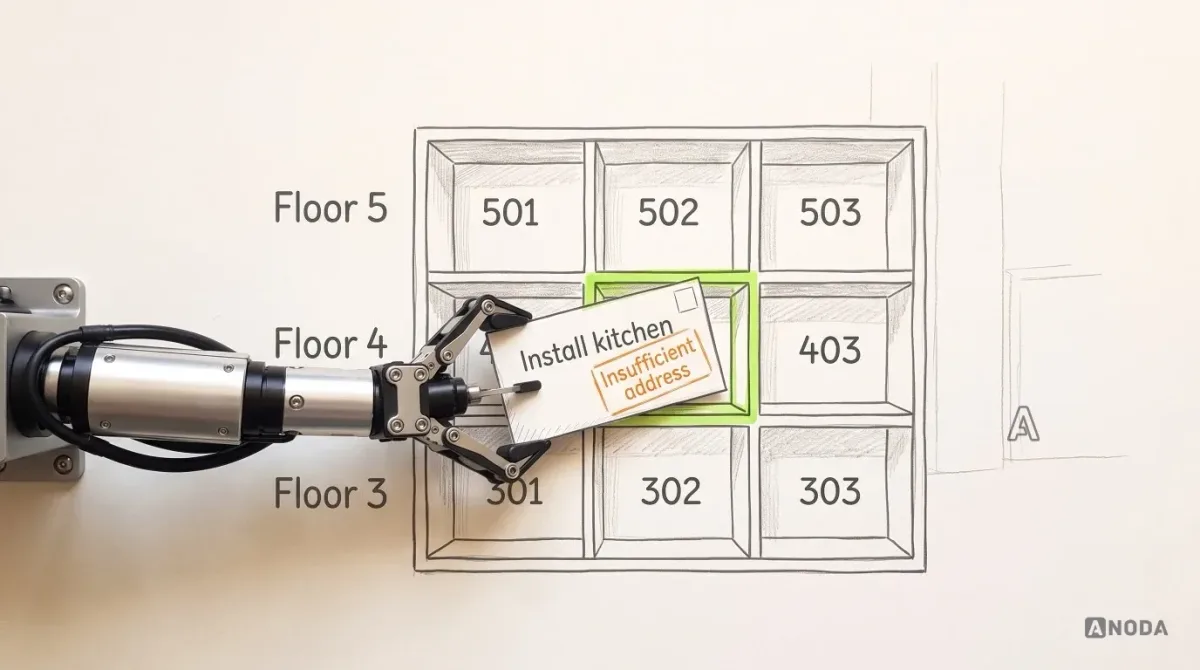
A letter addressed to “the kitchen in the tall building on the left” comes back stamped “insufficient address”. Construction software is less polite. It doesn’t send the work back. It delivers it to whoever guesses.
So start with the hierarchy and build it the way a postcode works: each level narrows the one above. In our illustrative job:
- Project: a residential building where an installer fits a kitchen in every apartment.
- Floor: floor 4.
- Unit: unit 402, kitchen type B.
- Installation task: fit the cabinets, worktop and fittings for kitchen type B in unit 402.
- Estimate: the priced scope that the task comes from, with a version number.
Every record downstream carries the full address: the task, the photo, the note, the punch item, the progress line. Not because it looks tidy. A photo of a corner cabinet with no unit attached is a postcard with no address: lovely picture, nowhere to deliver it, and somebody’s Friday afternoon spent working out where it was taken.
Two things in this hierarchy are not design decisions, and a design team that pretends otherwise is writing your contracts for you. Pricing belongs to the client: rates, markups, what counts as a variation. Construction rules belong to the client too: installation sequence, what “complete” means for a kitchen, what the customer signs off and when. Design makes those rules visible and hard to break. It doesn’t invent them, and it doesn’t certify them.
An estimate in progress is not a work order
The estimator records the scope for unit 402. While that estimate is being priced, revised and argued over, it is a pencilled-in hotel booking. Excellent for planning. Not a reason to send housekeeping to make up the room.
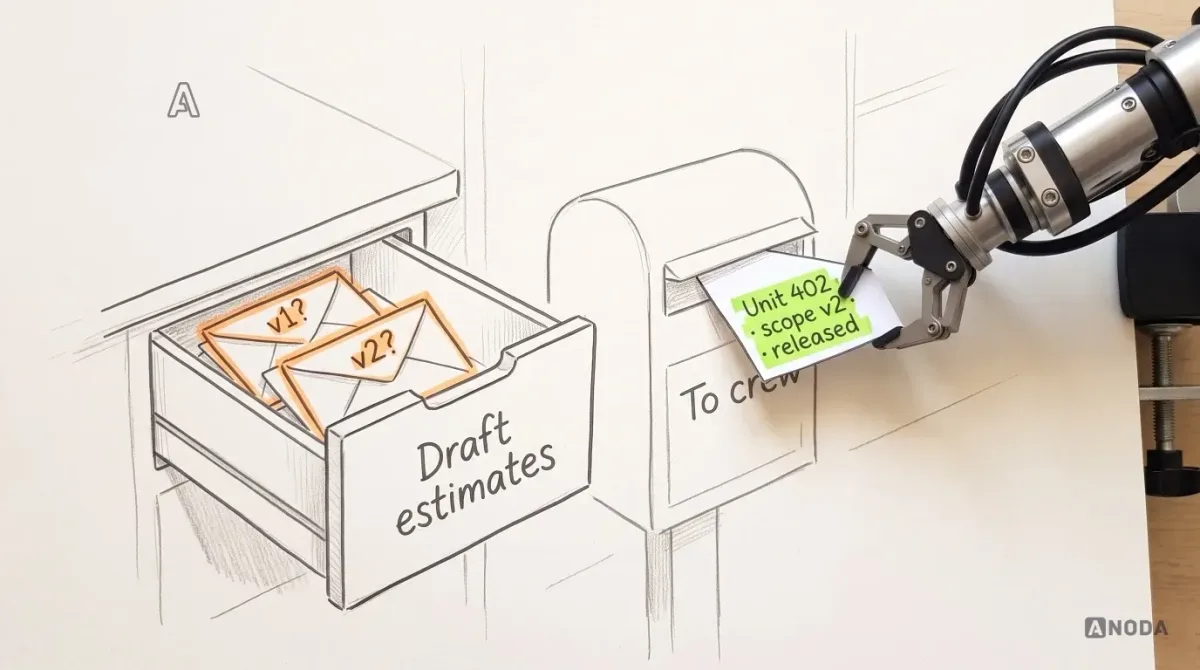
The classic failure is generous access. The crew can see the estimate, because transparency. So they read version 1 on Monday, the customer approves version 2 on Wednesday, and on Thursday somebody fits version 1’s worktop. Now you are paying for the material twice and the labour three times: to fit it, to remove it and to fit the right one.
Design the boundary as an explicit step called release. In our illustrative flow:
- The estimator builds the estimate. Status: draft. Visible to the office only.
- The office agrees the price with the customer under the client’s own approval rules. Status: approved. Still not crew work.
- The site manager releases the approved scope for unit 402 to a crew, with a planned date. Only now does it become a task on the crew’s tablet, carrying the estimate version it came from.
Release is the moment an office document turns into site instructions, so it needs a named person, a version and a visible trace on both sides. The office sees “Released to crew A by the site manager, scope v2”. The crew sees the task with scope v2 and nothing from v1. When a later revision touches released work, it doesn’t quietly overwrite the crew’s task. It goes back through the site manager as a new release, so the change has a sender.
On the tablet, the crew records what isn’t done
This is where field apps flatter themselves. They make “Complete” a big friendly button and treat everything else as an edge case. On a real job, “nearly done” is the normal case, and a tablet that can only say “done” trains crews to lie politely.
In our example the crew lead opens unit 402 and finds the task exactly as released: scope v2, kitchen type B. Cabinets in. Worktop in. The hinge fitting for the corner cabinet isn’t in the delivery. Without leaving the unit, the tablet has to let them:
- Mark the task incomplete, not failed and not done, with what is outstanding.
- Raise a punch item inside the task: “Corner cabinet hinge fitting missing”, already attached to floor 4, unit 402, kitchen type B, scope v2, because the crew lead is standing inside that address and shouldn’t have to type it.
- Attach the photo of the empty hinge position to that item, not to a camera roll somebody sorts later.
- Say what they need next: the fitting ordered and a return visit.
Everything else on the task stays recorded as done. Partial progress is still progress, and the crew shouldn’t have to choose between overstating and understating it.
The words matter as much as the buttons. “Incomplete: 1 punch item” tells the site manager what to do. A red dot tells them to phone someone. Every task that gets marked complete because the app had no honest word for “almost” is a return visit you’ll hear about from the customer, at the worst possible moment, in front of their new kitchen.
A punch item needs a name, a date and proof
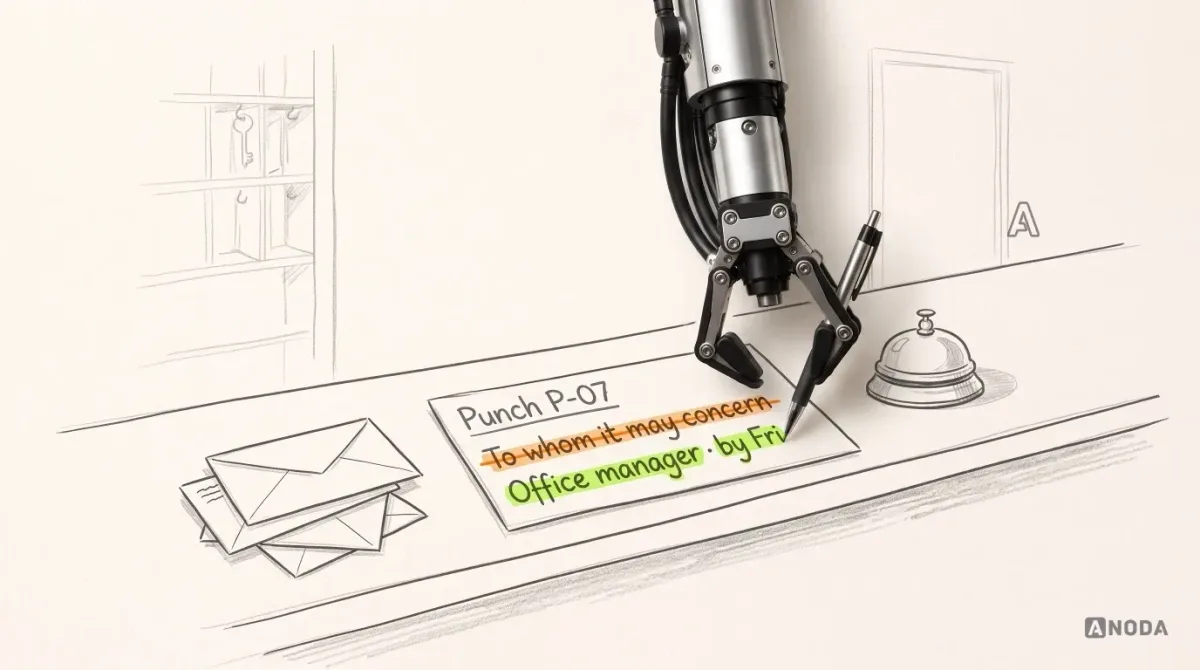
A punch item assigned to “the team” is a letter addressed “To whom it may concern”. Nobody is concerned. It sits in a shared list, everybody assumes somebody else has it, and the customer finds it at handover.
In the illustrative flow, every punch item carries four things:
- A responsible person. One name, not a crew and not a department. The site manager assigns it, here to the office manager, because the fitting has to be ordered.
- A due date, set at assignment and visible to whoever owns the item and to the site manager.
- Evidence: the photo that raised the item and, later, the photo that closes it.
- Permitted changes: who may edit the description, move the date, reassign the item and close it. Your rules decide; the interface shows them before anyone tries.
Then comes the distinction that prevents most arguments: missing evidence is not completed work. A crew can fit the hinge and forget the photo. That isn’t done; it is fixed and unproven. Recorded delivery works the same way: “delivered” with no signature is a claim, not a receipt. Without that separate state, every punch item sits in limbo, fixed according to the crew and unfixed according to the customer, until somebody drives to the building and opens the door. That drive is paid for, every time.
| State (illustrative) | Who holds it | What they can do | What others see |
|---|---|---|---|
| Open | Office manager | Order the fitting, propose a new date | Site manager: open, due Friday. Crew: waiting for the fitting |
| Ready for crew | Crew lead | Fit the hinge, add the closing photo | Site manager: fitting delivered, visit planned |
| Fixed, no evidence | Crew lead | Add the photo; cannot close the item | Site manager: fixed, photo missing |
| Awaiting acceptance | Site manager | Accept, or send back with a note | Office: in review |
| Closed | Site manager remains the record owner; no action pending | View history | Customer: outstanding item resolved |
Web app design
Office planning and crew tasks on a tablet?
We design the estimate, release and punch-list screens, with every state and permission spelled out for your engineers.
When the tablet loses signal halfway through a report
Unit 402 sits in the core of the building, and the signal stops at the stairwell. The crew lead marks the task incomplete, raises the punch item, takes the photo and taps submit. Nothing happens.
A blank screen after “submit” is a holiday postcard: it arrives a week after you’re home, and by then the news is useless. Until the update is confirmed, the office is planning the return visit around a rumour, and “I sent it” is just the cheque in the post. The general mechanics of saved, queued and confirmed work are in our article on designing an internal tool around one repeatable workflow. Construction adds one problem of its own.
It is the change that crossed in the post. While the tablet sat in the stairwell, the office released a revision: scope v3 swaps the hinge type on the corner cabinet. The crew’s queued punch item was raised against v2. When it finally arrives, it must not overwrite v3 and it must not vanish. In our illustrative design, it lands flagged “raised against scope v2, current scope v3”, with the note and photo kept, and the site manager decides whether it still applies. Which change wins is your business rule, not ours.
A drawing can promise anything; a server has to keep the promise. Holding a report on the tablet, matching it to the right scope version and flagging the mismatch requires device storage and server capabilities your engineers will price and own. What design adds is the wording and the decision point: what the crew lead reads, what the site manager is asked, and which screen depends on which capability. Treat the flag above as an illustrative requirement, not as a description of how any product we designed synchronises.
Close the punch, then tell the customer only what they need
Back to unit 402. The site manager confirms that the retained v2 punch item still applies to released scope v3 and identifies the revised fitting it now requires. The office manager orders that fitting. Only when it is delivered and the return visit is planned does the item move to ready for crew. The crew fits the hinge and adds the closing photo. The site manager compares the evidence against the released scope and accepts. Only acceptance marks the task complete; the earlier partial progress stays recorded. Nobody’s optimism moves the completion indicator.
Now the customer. A hotel guest is told “your room is ready”. They are not shown the housekeeping rota, the plumber’s ticket for the shower or the argument about who forgot the towels. The homeowner of unit 402 needs the same courtesy: what is done, what is outstanding, when it is expected. At the earlier pending stage in our example: “Kitchen installed. One item outstanding: a cabinet fitting, expected Friday.” After acceptance, the update becomes “Cabinet fitting resolved; installation accepted.” Not the internal note that says the supplier forgot again, not the margin on the worktop, not the estimate history.
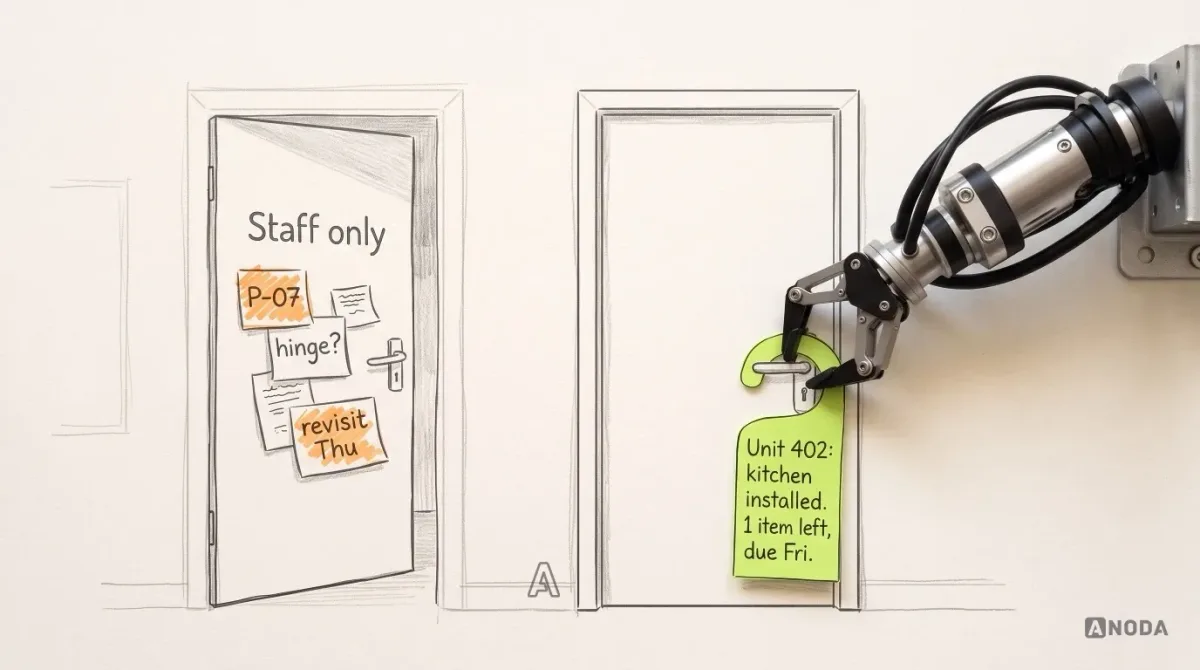
What the customer may see is the installer’s rule, and it often differs by contract: some customers get photos, some get a progress line only. Design gives you the control and the defaults; you decide the policy. The handover report then pulls from accepted states only, so nobody hands over a kitchen with an open punch item hiding behind a “complete” label.
A vague percentage makes the phone ring. Every call goes to someone you pay to do something else. “One item, due Friday” answers the question before it is asked.
Walk every role through the same unit before engineering starts
Don’t test the address on the customer. Put the estimator, the site manager, the crew lead and the homeowner through unit 402 in a clickable prototype. Same specimen, same address, four different seats.
Illustrative tasks for that session:
- Estimator: revise the scope after it has been released. Expected: the change goes to the site manager, not straight onto the crew’s tablet.
- Site manager: release scope v2 to a crew, assign the punch item with a due date, then accept or send back the fix.
- Crew lead: mark the task incomplete, raise the punch item with a photo, lose the signal, then say in your own words what was sent and what wasn’t.
- Crew lead: try to close the punch item without a closing photo. Expected: not allowed, with the reason on screen.
- Crew lead: try to open the price. Expected: denied, with nothing broken and no dead end.
- Homeowner: find out when the kitchen will be finished, then try to open the internal punch note. Expected: denied, and the outstanding item still explained in plain words.
Score each seat on one question: could this person say where unit 402 stands and whose move it is, without asking anyone? A wrong answer marks a screen to fix, not a user to train. Test the denied access as deliberately as the happy path: a permission nobody has tried to break is wishful thinking, not a rule. Finding this in a prototype lets the team correct it before rollout, when the same change may require a release and retraining and may cost the crews’ trust in the tablet. The general permission model behind this, roles, actions and conditions, is covered in our guide to enterprise software design; here, the point is to test it on one real job rather than in a matrix.
What we designed for Cabinit, and where our part stopped
Cabinit is a tablet-first web application, with a phablet adaptation, for managing kitchen installation in multi-unit residential buildings. ANODA designed it. The product covers admins, office managers who handle planning and estimates, site managers, installation teams and customers. Projects are organised by building, floor, unit and kitchen type. The design covers estimates, installation tracking, tasks and punch lists with photos, notes and activity history, and role-aware reports, delivered as a clickable prototype, a full design system and a developer handoff. A later engagement extended the same design system with a directory and project access management.
One of the problems that design work had to solve is the one this article is about: keeping office planning, site work, team tasks and customer visibility in step without showing anyone what their role shouldn’t see.
Our part was design. Development, synchronisation, backend rules and running the platform were not ours, and the unit 402 example above is illustrative, not Cabinit’s recorded behaviour.
Where to start
Pick one unit type and follow one job from estimate to handover. Before any screen, write down the hierarchy, the estimate statuses, who releases scope to the site, the punch-item rules and what each customer is allowed to see. Expect to find several answers to “who owns this punch item”, none written down.
If the office side still lives in spreadsheets and email, that is a separate job: the back-office tools behind the estimate and the orders, which is what our ERP and internal tools design work covers. If your crews work on phones rather than tablets, the field side becomes a mobile app design question with its own constraints on screen size and input.
A site manager who spends the day relaying messages is the most expensive switchboard in the building. Give the job one address, and let them manage the site.
Construction software design
Show us the job your phone is holding together
Bring one installation job, from estimate to handover. We’ll map how it moves between office, site and customer, and design the tablet and office screens that keep it one job.
Written by