In short
“Connected” is five different facts: the account works, the phone allows the app, the network reaches, the cloud took the request and the device reported back. Apps that blur them lie to users exactly when a command goes missing. Follow one fictional lamp through pairing, a refused permission, a pending command, a dropped connection and recovery, and see what the screen should say at every step, and what it must never guess.
In this article
- Five states hiding behind one word
- The example we will follow
- Pairing prerequisites, and the user who says no
- Confirm the device and the owner before the first command
- A command is pending, not complete
- Reconcile before you retry
- Support, and more than one device
- What this looked like on a real product
- Prototype the unhappy paths before handoff
A connected-device app can only tell users what happened if it tracks five separate facts: whether the account has access, whether the phone allows the app to reach the device, whether the network gets through, whether the cloud accepted the request and what the device itself last reported. When a command loses its connection halfway, the honest answer is “requested, not confirmed”, next to the last state the device actually confirmed and when. Then the app checks before it lets anyone press the button again.
Most IoT apps get this wrong in one very specific way. The screen says “Connected”. The user taps. The spinner spins. The lamp does nothing, or something, and nobody knows which. The user taps four more times, closes the app, opens a one-star review and goes back to the light switch on the wall: the one interface that has never needed a firmware update.
That light switch is your competitor, and it was free. Your customer paid for the hardware and, probably, you paid for the install. Losing to a plastic toggle is an expensive way to finish second.
Five states hiding behind one word
“Connected” is the most dishonest word in connected-device design. It sounds like one fact. For a cloud-connected product, it can cover five separate facts, reported by different systems and failing for different reasons. A direct Bluetooth product may have no cloud step; use the states its architecture actually reports:
| State | The question it answers | Who reports it |
|---|---|---|
| Account access | Is this person signed in, and allowed to use this device? | Your account service |
| Phone permission | Has the operating system let the app use Bluetooth, the local network or location? | The phone’s OS |
| Network reachability | Can the phone reach the device or the cloud right now? | The phone and the network |
| Cloud request status | Did the server accept the command, and has it heard back? | Your backend |
| Physical device report | What does the device say it is doing, and when did it last say so? | The device |
A doctor does not discharge a patient because the pulse is fine. A good pulse proves the heart is working. It proves nothing about the broken ankle. Logged in and online are the pulse of your app: necessary, reassuring and completely silent about whether the lamp in the bedroom is actually listening.
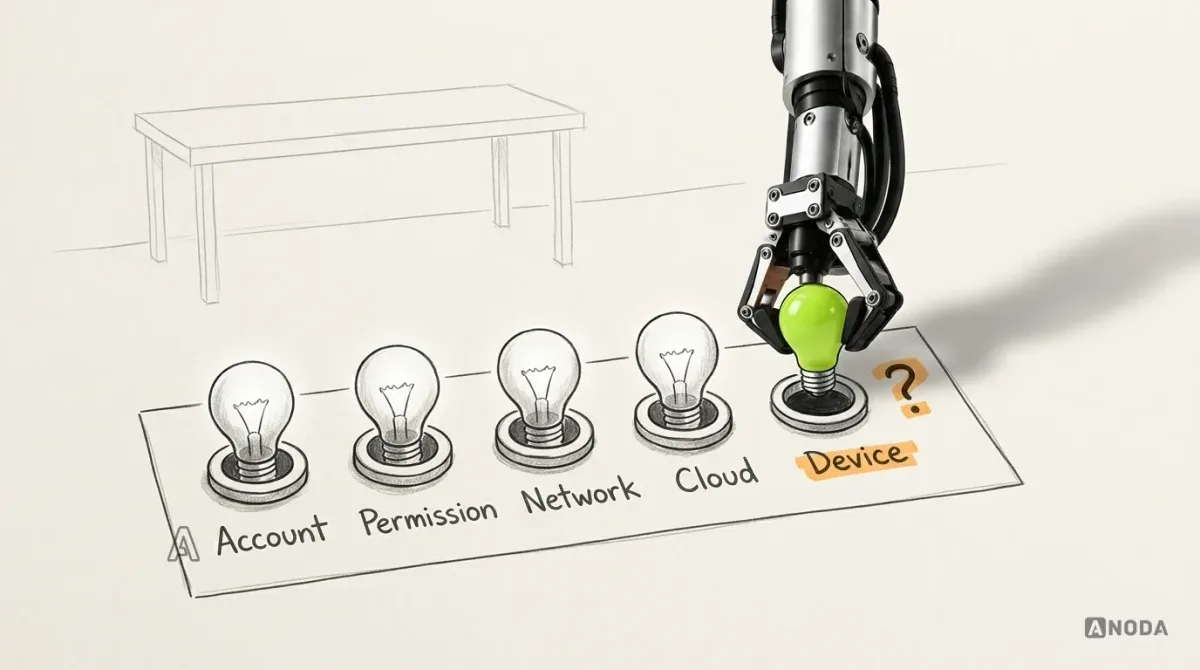
Each state needs its own place on the screen and its own failure message. “Can’t reach Lamp A from this phone” and “Lamp A hasn’t reported since 21:14” are different problems with different fixes. Merge them into “Something went wrong” and you have handed your support team a riddle, at your expense, per ticket.
The example we will follow
One fictional walkthrough runs through the rest of this article. It is illustrative, not a client product.
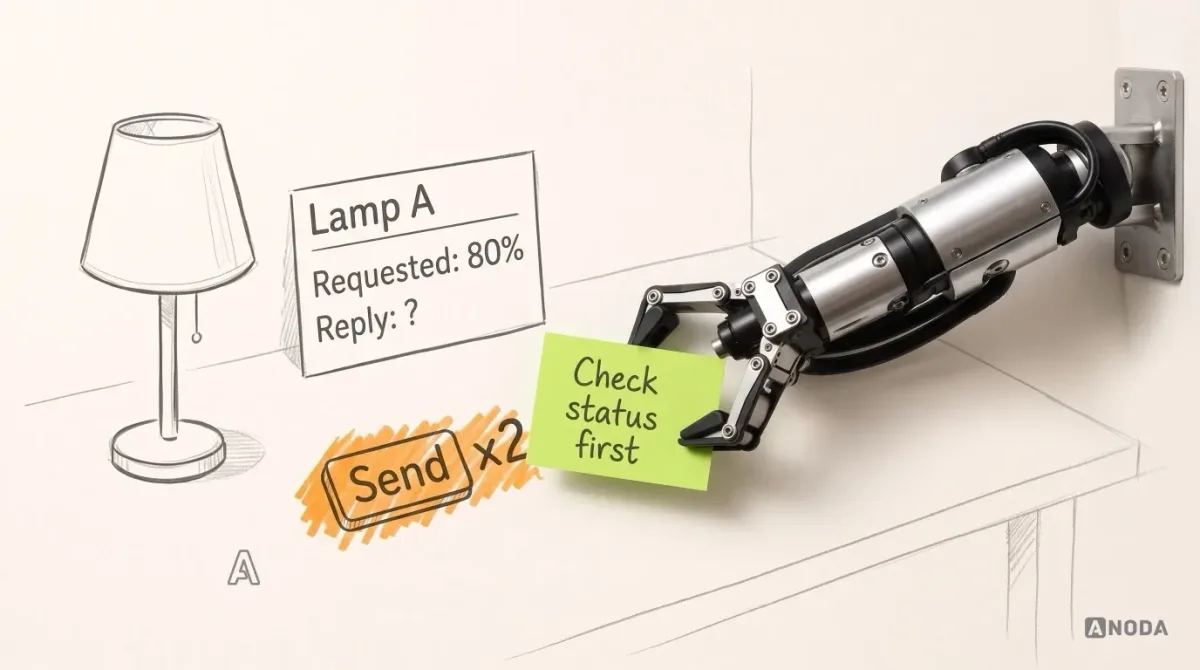
A user sets up a smart lamp, names it Lamp A, grants the permission the app needs and asks for brightness to go from 40% to 80%. Halfway through, the phone loses its connection. The command is pending. Nobody knows whether the lamp got it.
Pairing prerequisites, and the user who says no
Before anyone pairs anything, two prerequisites decide whether pairing can even start.
The first is compatibility. Is this lamp a model the app supports, with firmware it can talk to? Say so before the scan, not after it fails twice.
The second is ownership, and the rules are yours, not ours. Can a device have one owner or several? Can someone pair a lamp that is already registered to another account? What does a second-hand buyer do? Your client team and engineers define these rules. The design job is to make each rule visible at the moment it applies, instead of discovering it as an error code.
Then the phone gets a vote. Both major platforms gate the hardware a connected app needs:
- iOS asks the user before an app first uses Bluetooth, and before it first talks to devices on the local network. Reading the name of the current Wi-Fi network generally needs precise location permission or another route Apple allows. At the time of writing, Apple’s AccessorySetupKit (iOS 18 and later) offers a system picker that grants access to one specific accessory instead of a broad Bluetooth prompt.
- Android asks for the “Nearby devices” permission before an app scans for or connects to Bluetooth devices, for apps targeting Android 12 and later; on older versions Bluetooth scanning is tied to location permission. At the time of writing, Android 17 blocks local network access by default for apps that target it, unless they use a system picker or receive the new local network permission. When that permission is missing, a connection can simply time out.
Read that last line again. A refused permission can look exactly like a dead network. If the app does not know which permissions it holds, it will tell users their Wi-Fi is broken when the real problem is a toggle in Settings. Which APIs and pickers you use is an engineering decision; what the screen says about each answer is a design one. These rules change with every OS release, so check current platform docs before you design the prompts.
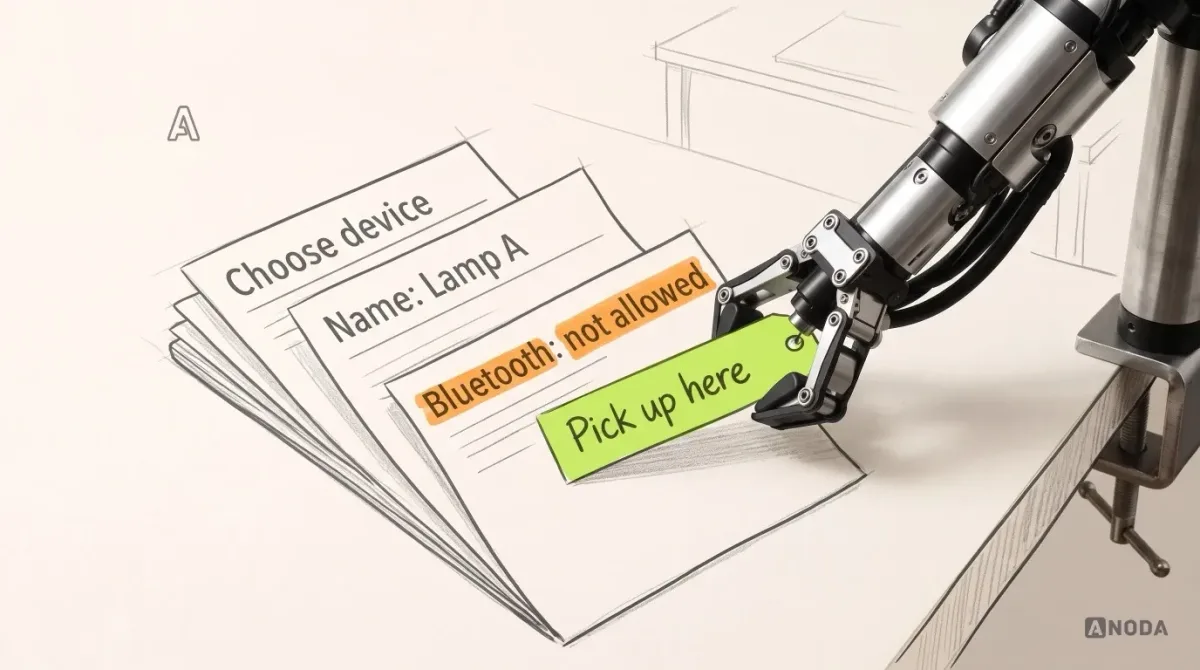
When a child forgets the signed permission slip, the school does not cancel their enrolment. They bring the slip tomorrow and keep their seat on the bus. A permission refusal deserves the same courtesy:
- Explain, before the system prompt, what the permission is for in this product, in one sentence.
- If the user refuses, keep everything they have done: chosen model, name, room.
- Say what no longer works without the permission, and what still does.
- Offer the route to the system settings, and resume at the same step when they come back.
Sending someone back to “Start setup” over one declined prompt is the most expensive “no” in your funnel.
Confirm the device and the owner before the first command
Discovering a device is not connecting to it, and connecting to it is not permission to control it. Teams blur these three, and the blur shows up the first time two identical lamps sit in the same flat.
Anyone who has pressed a car key in a full car park knows the feeling. Something blinked, somewhere. You do not drive off in the first silver hatchback that flashed its lights. You check the number plate.
The app needs its number plate. In our fictional example, the scan finds two lamps. The app shows each with a name, a model and an identifier the user can match against the label on the base: “Lamp A, LA-7F3C”. Better still, it asks the lamp to blink, and the user taps “That’s the one”. Discovery found a device. The blink confirmed which one.
Then comes control rights. Before the first command, the app should know, and show, whether this account owns Lamp A, was invited to it or merely sees it nearby. An invited user who can dim but not reset, or schedule but not remove, should see that before tapping, not as a red banner after.
A failed command annoys people. A command sent to the wrong lamp teaches them that every tap is a gamble, and nobody keeps paying a subscription for a slot machine.
A command is pending, not complete
Here is where most connected apps tell their first lie. The user drags the slider to 80%. The app moves the slider to 80% and the lamp icon glows brighter. The command has not arrived anywhere yet.
There are three facts on that screen, and they deserve three places:
- Requested: 80%, at 21:15, by this user.
- Waiting for: the lamp to acknowledge.
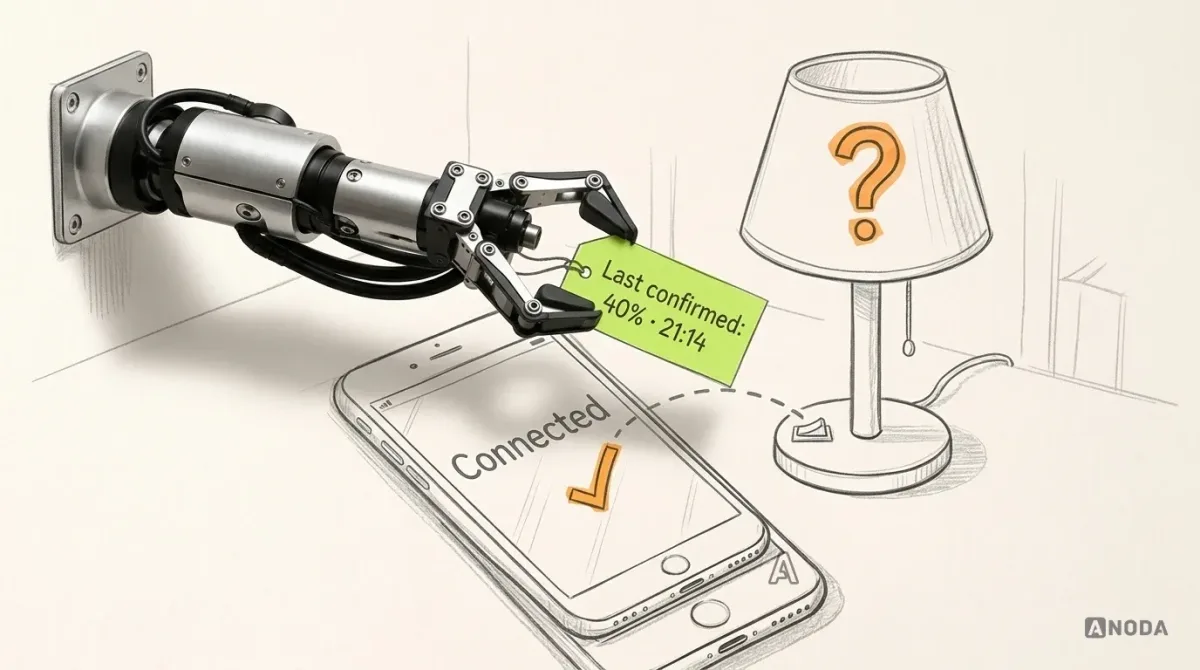
- Last confirmed: 40%, reported by Lamp A at 21:14.
Now the connection drops. The request may have reached the lamp. It may have died on the phone. It may have reached the cloud and be sitting there. Schrödinger would have loved IoT: until somebody checks, the lamp is both at 40% and at 80%, and the only wrong move is to pick one and paint it on the screen.
A timed-out request is not proof the device did nothing. It is proof that nobody knows yet.
When a mountain weather station stops transmitting, the forecasters do not report clear skies. Silence is missing data, not calm. No news is good news everywhere except in IoT, where no news is just no news.
So the screen says exactly that: “Brightness change to 80% not confirmed. Lamp A last reported 40% at 21:14. Checking again when you’re back online.” It keeps the request, keeps the lamp selected and does not reset the slider as if the user imagined it. Reverting the slider to 40% is guessing. Leaving it at 80% with a cheerful tick is guessing. Showing the gap is the only honest design. Guess wrong once, in either direction, and the user stops believing the screen for good. From then on, every tap comes with a doubt, and the app has become a decorative remote.
Mobile app design
Your app shows a tick before the device does?
We design phone and tablet flows where every state, pending one included, says what is actually known.
Reconcile before you retry
The instinct, from users and engineers alike, is “just send it again”. Sometimes that is fine. Sometimes it is how a lamp becomes brighter than intended after repeated “increase” commands, or how an actuator receives a repeated operation.
A nurse who is not sure whether the eight o’clock dose was given does not give another one “to be on the safe side”. She checks the chart. Better to check than to send twice.
Whether a retry is safe is not a design opinion. It depends on the device protocol and the command’s side effects. Repeating a target value such as “set to 80%” can be idempotent under that protocol; repeating “increase by 20%” changes the intended result. Your engineers define how a pending request is closed and when a retry is safe under the client’s control and safety rules. What design owns is the order of events on the screen:
- Show the last good state and its timestamp.
- Wait for the request window your engineers define. (In our illustrative example, a few seconds before the screen even says “not confirmed”.)
- When the connection returns, ask the device or the cloud for current status under the client’s protocol, and say when the next check will happen.
- Only then offer what the result allows.
That last step branches, and every branch needs its own screen:
| After the status check (illustrative) | What the user sees | What the app offers |
|---|---|---|
| Lamp A reports 80% | “Lamp A currently reports 80%” with the new timestamp | Requested value observed; reconcile and close the pending request under the protocol before another command |
| Lamp A reports 40% | “Lamp A currently reports 40%; the requested outcome remains unconfirmed” | Check the request status; retry only once it is closed under the client’s rules |
| Lamp A reports a different value | “Lamp A currently reports 60%; checking the earlier request” | After the pending request is resolved, offer an authorised new command to 80%, or keep 60% |
| Lamp A hasn’t reported | “Still no reply from Lamp A since 21:14” | Troubleshooting steps, then support |
Notice what is missing: an unconditional “Try again” button glued to every failure. It feels helpful in review and breeds duplicate commands in the field. It is a band-aid on a bullet wound.
Support, and more than one device
Sooner or later a user gives up and contacts support. That conversation should start where the app left off, not from zero.
Ringing an airline after a cancelled flight and spelling out your booking reference letter by letter, twice, to two departments, is how a minor delay turns into a customer who never flies with you again. Carry the context with the user: the selected device, the command, its status and timestamps, the last confirmed report, and anything they had already filled in. Every minute an agent spends asking “which lamp, and what were you trying to do?” is a minute you pay for twice, once in salary and once in patience.
Then multiply the devices. Three lamps, a heater and a shared account is where the subtle mistakes live:
- Switching devices must be deliberate and visible. The selected device name stays on every control screen, so a pending command for Lamp A never quietly applies to Lamp B.
- Pending state belongs to a device, not to the screen. Switch to Lamp B while Lamp A is unconfirmed, and Lamp A keeps its “not confirmed” badge.
- Permissions differ per device. The owner of Lamp A may be an invited guest on the heater. Controls should reflect that before the tap.
A baby monitor that picks up the neighbour’s nursery is charming once and terrifying the second time. A cross-device command in a connected home earns the same reaction, and a one-way ticket off the customer’s phone.
If your connected product also has an operator side, such as fleet dashboards or field technicians working through service tasks, that is a different job with different roles. We cover that workflow side in our guide to designing an internal tool around one repeatable workflow.
What this looked like on a real product
For Clearwater Wellness Co., we designed the mobile app for its SnowCap connected cold-plunge device. ANODA’s part was design: user flows and journey maps for connecting SnowCap, controlling bath modes, setting alarms, tracking sessions and sharing achievements; phone and tablet UI including session countdown, connection and error states; a clickable prototype, a screen map and the developer handoff.
That case documents our design contribution, rather than the control protocol or an implementation guarantee. The lamp example, including its invitation, retry and offline rules, is fictional and deliberately separate: SnowCap’s own control and safety rules belong to the client, not to a blog post. You can see the designed flows in the Clearwater SnowCap app case study.
Prototype the unhappy paths before handoff
Every connected app sails beautifully on a millpond: one phone, one device, fast Wi-Fi, a designer holding both. Real homes have crosswinds: thick walls, a router in a cupboard, a partner changing the brightness from their own phone.
Test the prototype against the weather it will actually meet. Give people tasks, not tours, and include the ones that hurt:
- Permission refusal. Decline the prompt. Can they recover without starting over?
- Wrong device. Two identical lamps. Do they control the one they meant?
- Expired access. Their invitation was revoked. Does the app say so, or just fail?
- Interruption after submission. Kill the connection with a command pending. What do they believe happened, and what do they do next?
- Stale status. Show a report from an hour ago on phone and tablet. Do they notice the timestamp?
Watch what people believe, not only what they tap. A user who thinks the lamp is at 80% when it is at 40% has failed the task, even if the truth was technically on screen in tiny grey text.
Then sit down with engineering before handoff and agree on the list of states: which ones the device and backend actually produce, what each is called, which commands are safe to repeat, and how long the app waits before it says “not confirmed”. A design that invents states the backend cannot report is a blueprint for a floor the building doesn’t have. Better a short, true list than a long, imagined one.
Every unhappy path you skip in the prototype, you choose to test later with paying customers, one support ticket at a time.

IoT app design
Make your app say what the device actually did
Bring us your device, its states and the moments users get lost. We design the pairing, control and recovery flows, prototype the unhappy paths and hand your engineers states they can build.
Written by