An enterprise AI workspace employees can read
AI Gateway, by Larridin, is an AI workspace for employees and the admins who oversee it.We designed its first stage, from specification to handoff.
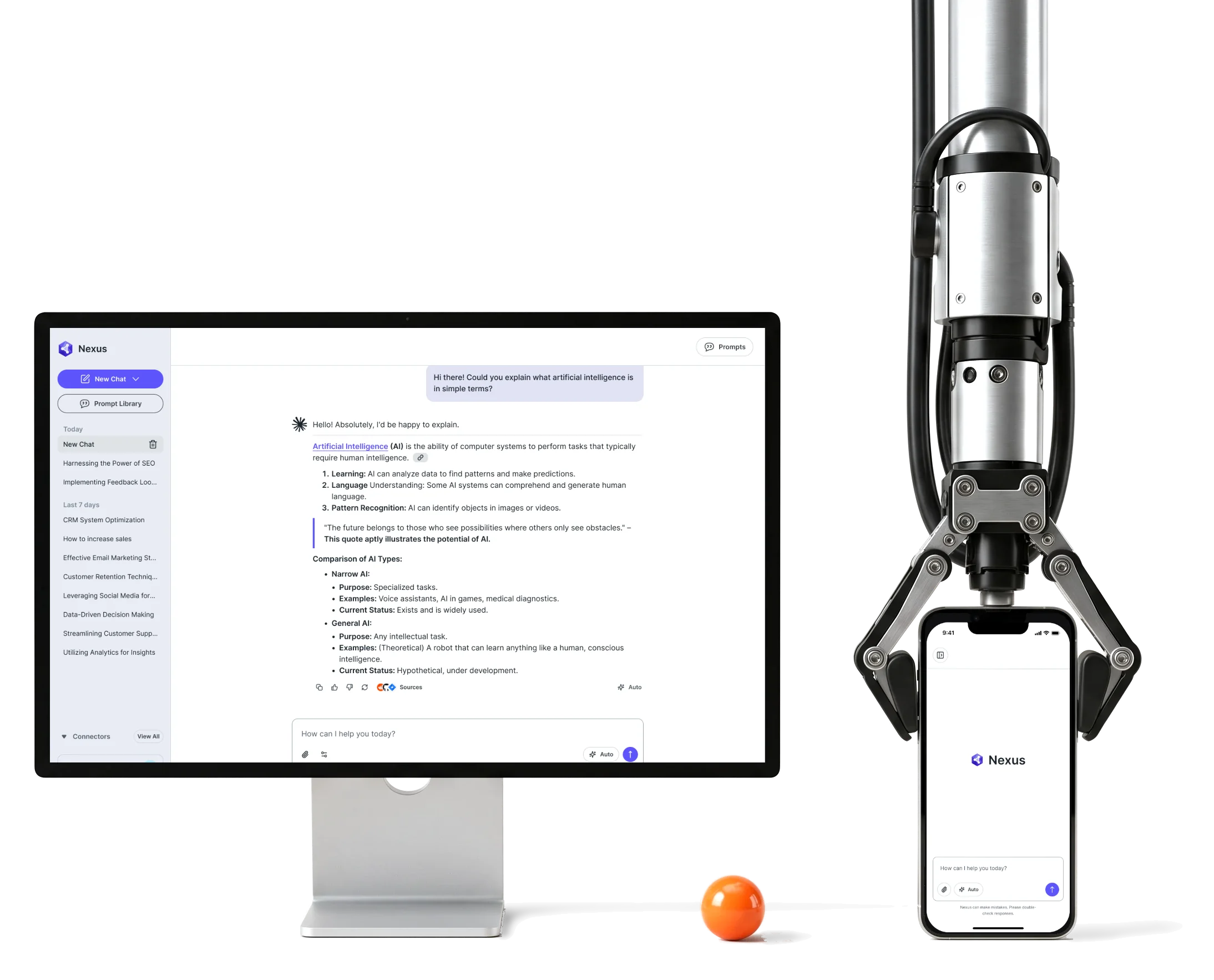
- Employee
- and admin staff chat and prompts, admin connectors and usage
- Sources
- and steps citations, thinking, model choice and a stop control
- Ready
- for Dev prototypes and a system on the client’s foundations
Project summary
We designed AI Gateway’s first-stage enterprise workspace inside Larridin’s product team. We connected model switching, reusable prompts and tool access with the usage views admins need, then carried those flows into responsive UI and a design system extending the client’s foundations. Clickable prototypes and a Ready for Dev handoff gave Larridin’s engineers a defined experience to build.
How the work ran
- Stage
- The first stage of AI Gateway, May–June 2025, ending with a Ready for Dev handoff.
- Our part
- Embedded product design inside the Larridin team, working against the client’s specification in the client’s own design files.
- Name
- Late in the stage the logo changed to Nexus, so the newest screens carry that name. Larridin’s later Nexus product, and Scout, are separate cases.
- Not ours
- Development, models, infrastructure and launch stayed with Larridin.
What an employee and an admin pass through
One product, two ways in:
-
Ask
- Model and mode
- Saved conversations
- Attachments
-
Reuse
- Prompt Library
- Starred prompts
- Connectors a prompt needs
-
Connect
- Discover a tool
- Authorise it
- Choose what it may do
-
Read
- Thinking
- Sources
- Stop, or an error
-
Oversee
- Connectors for everyone
- Usage by department
- App inventory
- A simple chat and A visible model
- The choice is one small control beside the message box, with more models a step away.
- Fast answers and Answers you can check
- Thinking and sources sit one click from the text, and stay out of the way until needed.
- Employees and Admins
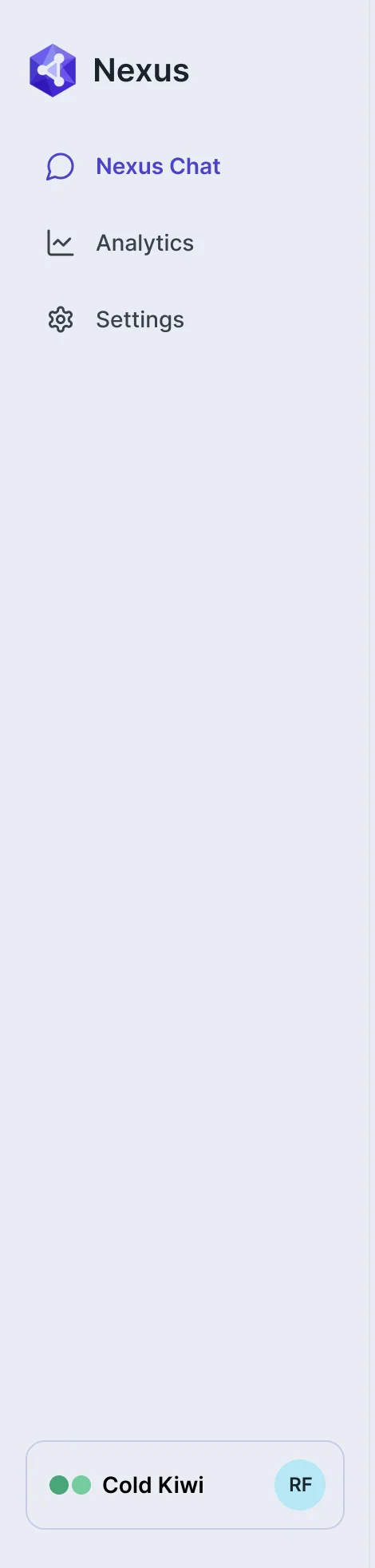
- One shell and one language, with a menu that shows each role only what is theirs.
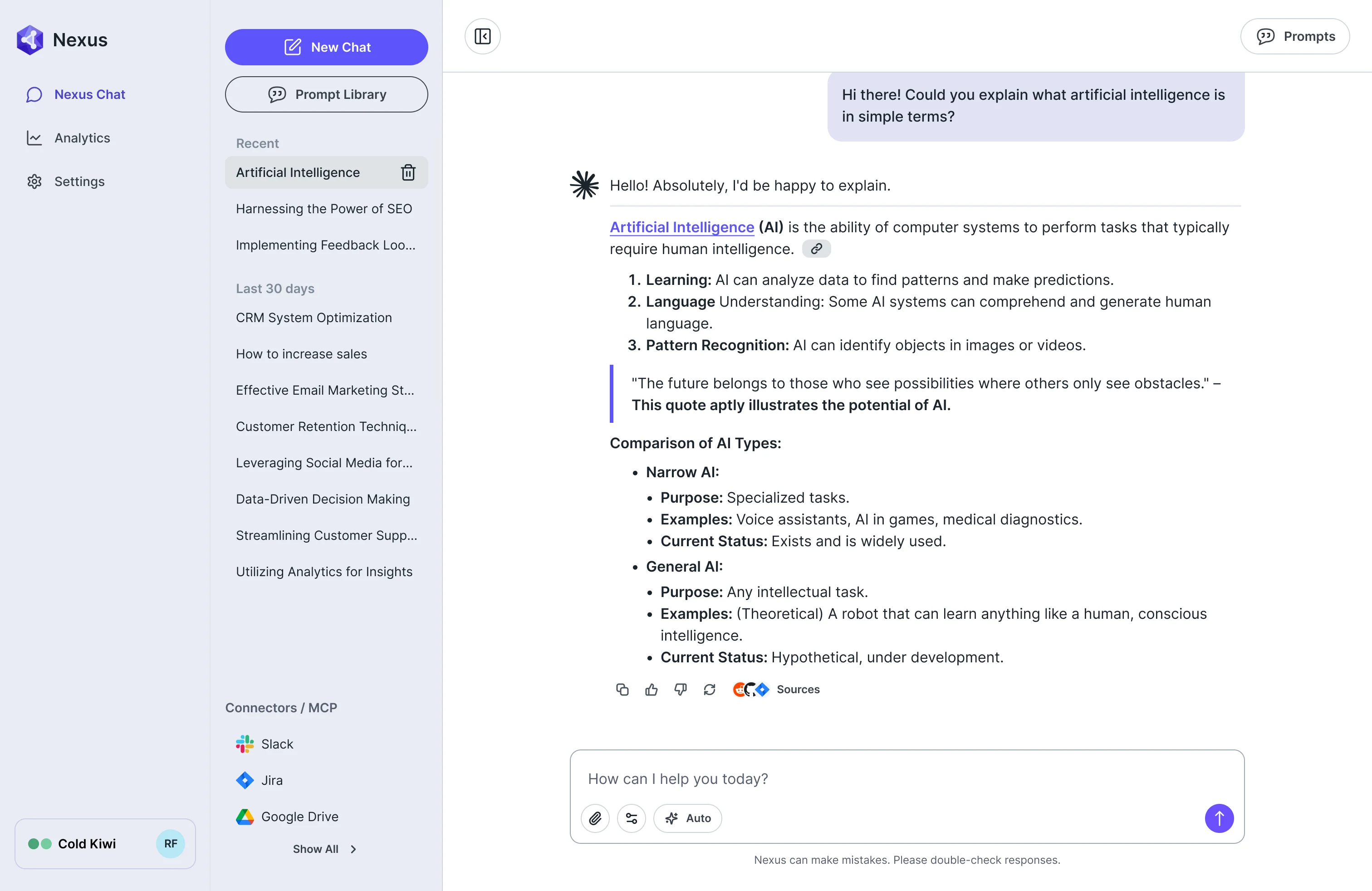
One chat screen, read in the order of trust
- Found
- Saved chats, the answer, where it came from, the model and the connected tools all ask for a first look, and an answer that hides its origin is one nobody can check.
- Decided
- The answer takes the centre. Its sources sit directly under it, the model and mode sit in the message box, and the chats and connected tools stay in the side column.
- For the user
- An employee sees which model answered and where the answer came from, without leaving the conversation.
-
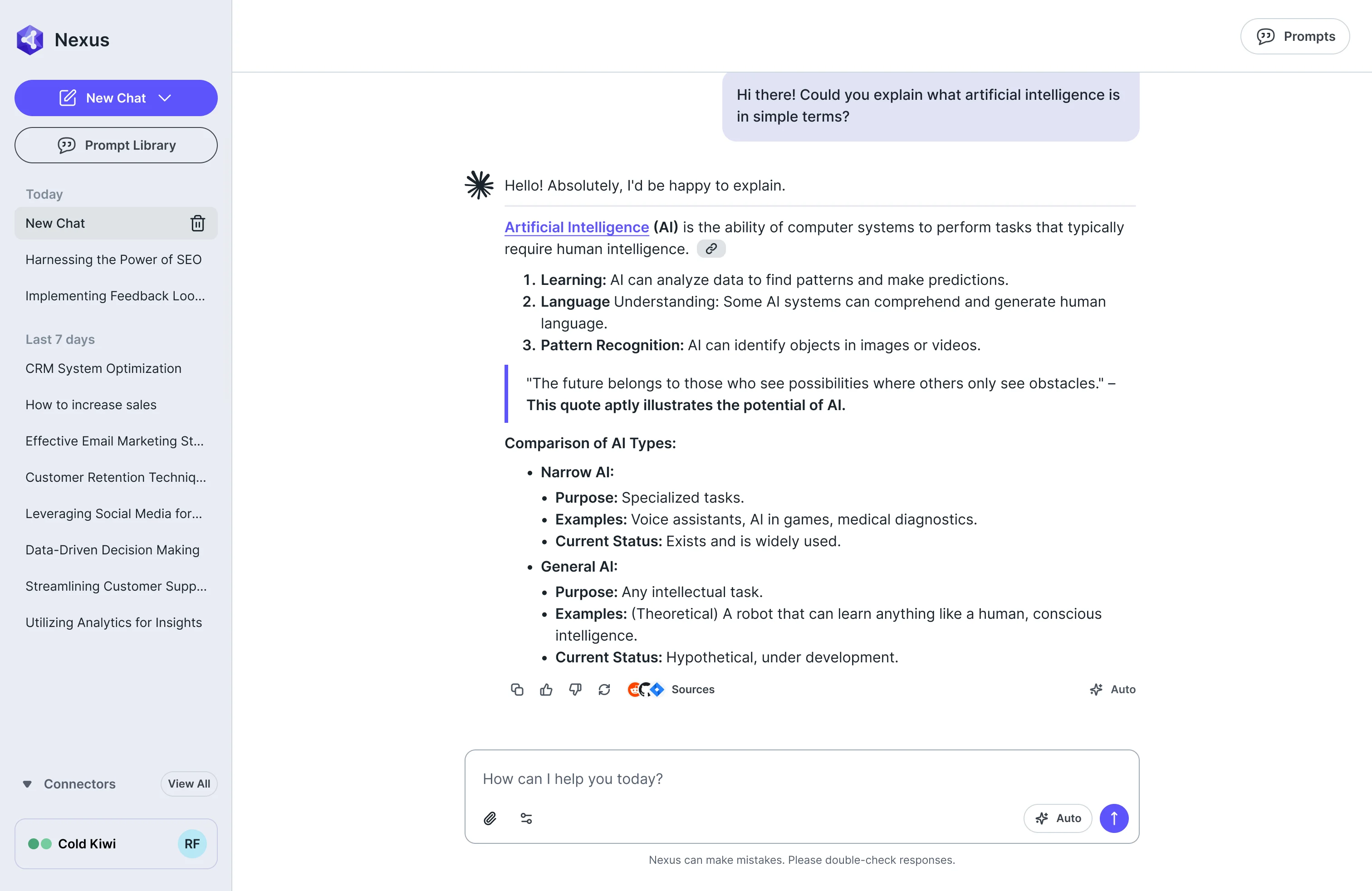
The answer and where it came from
Plain structure, the sources one click under it.
-
Model, mode and tools
Model and mode in the box, tools beside it.
How the work progressed
From a specification to prototypes and files an engineering team could build from.
-
Discovery
What the specification asked of employees and admins, and where the two sides needed different answers
Artifact A reading of the specification against both roles
-
User Flow
How chat, prompts, model choice and connectors connect, and what happens when a connector is not yet authorised
Artifact Information architecture, flows for both roles and role-based screen maps
-
Wireframes
Where the model, the sources and the connectors sit, before any styling
Artifact High-fidelity wireframes and visual-direction studies
-
UI & Design system
One set of components for chat, prompts, connectors and admin tables, with the AI states the client’s system lacked
Artifact Final responsive UI, a design system and a UI kit extending the client’s foundations
-
Delivery
What engineers needed to build every state
Artifact Clickable product and go-to-market prototypes, organised screens and Ready for Dev files
From a question to a connected answer
- Found
- A chat looks simple until it has to start from a prompt, switch models and reach a tool, and each of those has states of its own.
- Decided
- Three runs drawn with their states before the interface, and a menu that gives an admin the settings and usage an employee never needs to see.
-
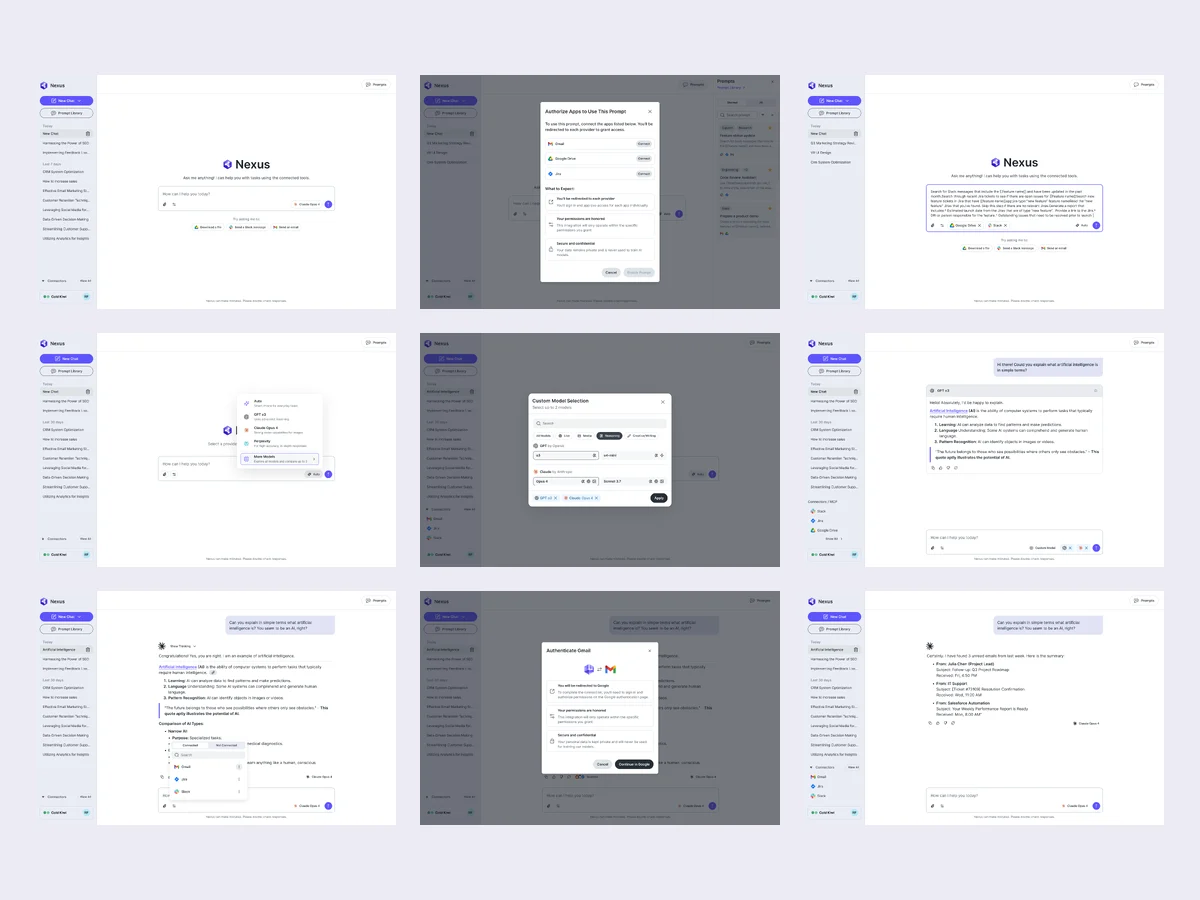
From a prompt
The empty chat with its suggestions, a prompt that needs apps authorised first, then the prompt in the message box.
Open the full map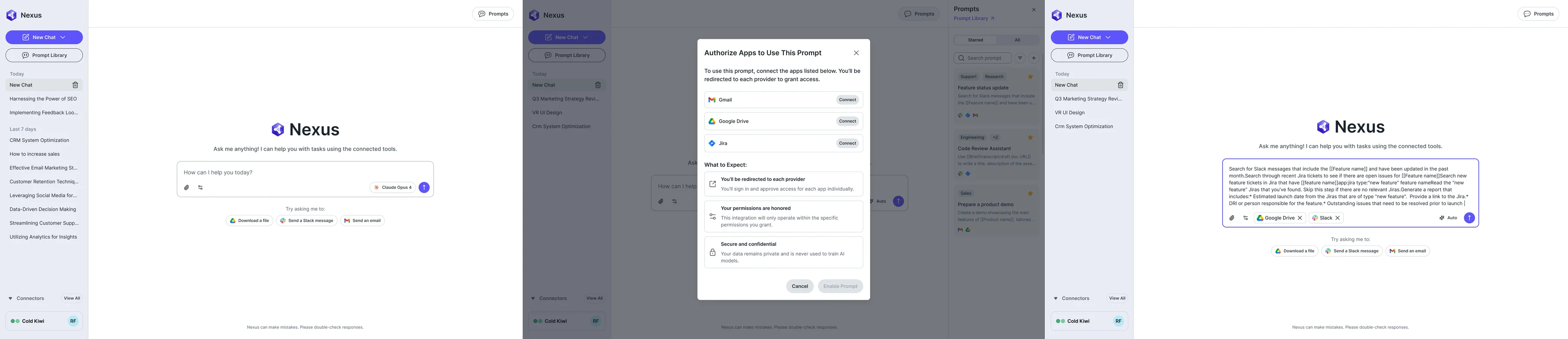
-
Choosing a model
The default, the short list of models, then two models chosen side by side.
Open the full map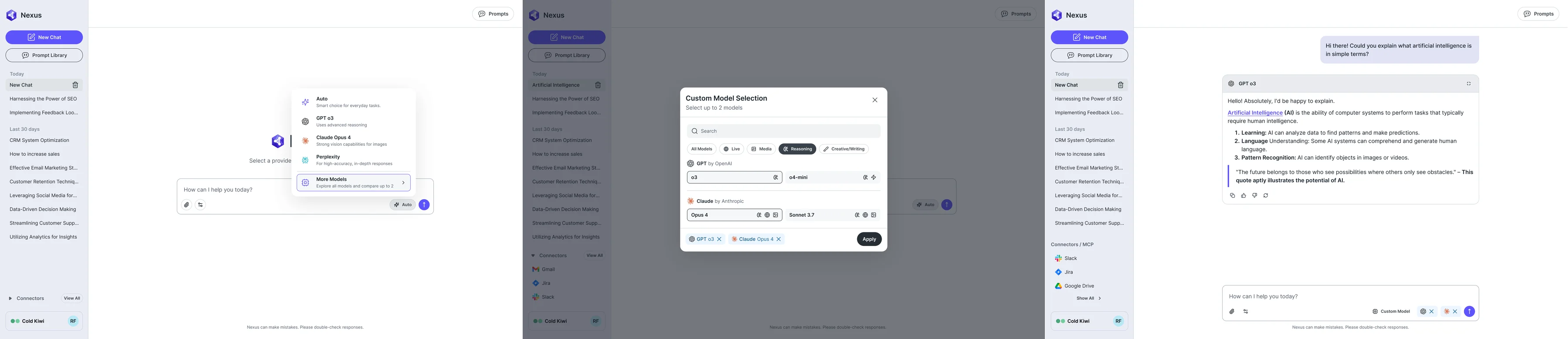
-
Connecting a tool
Connected and not connected tools, the sign-in step, then an answer that used the connector.
Open the full map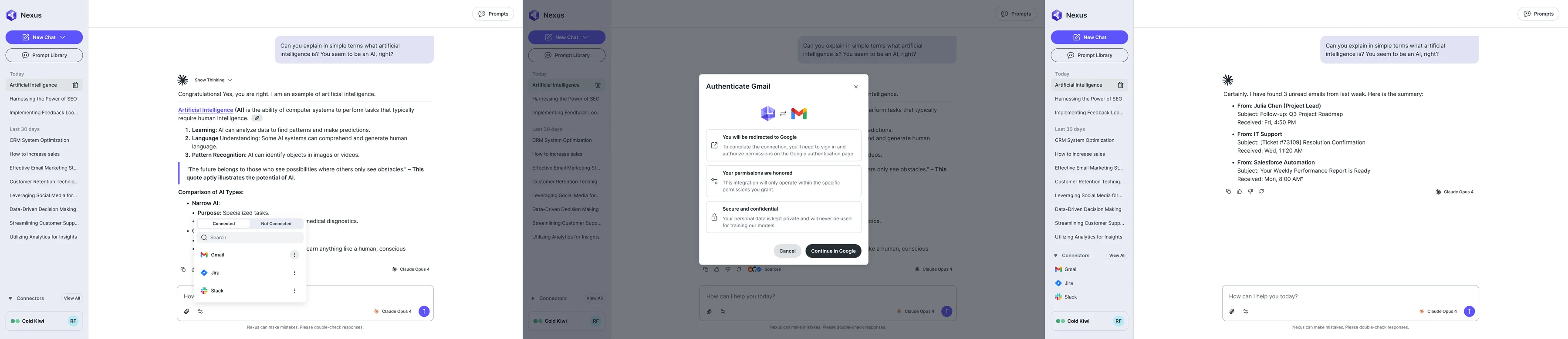
Five jobs the product has to do
In the order a team meets them.
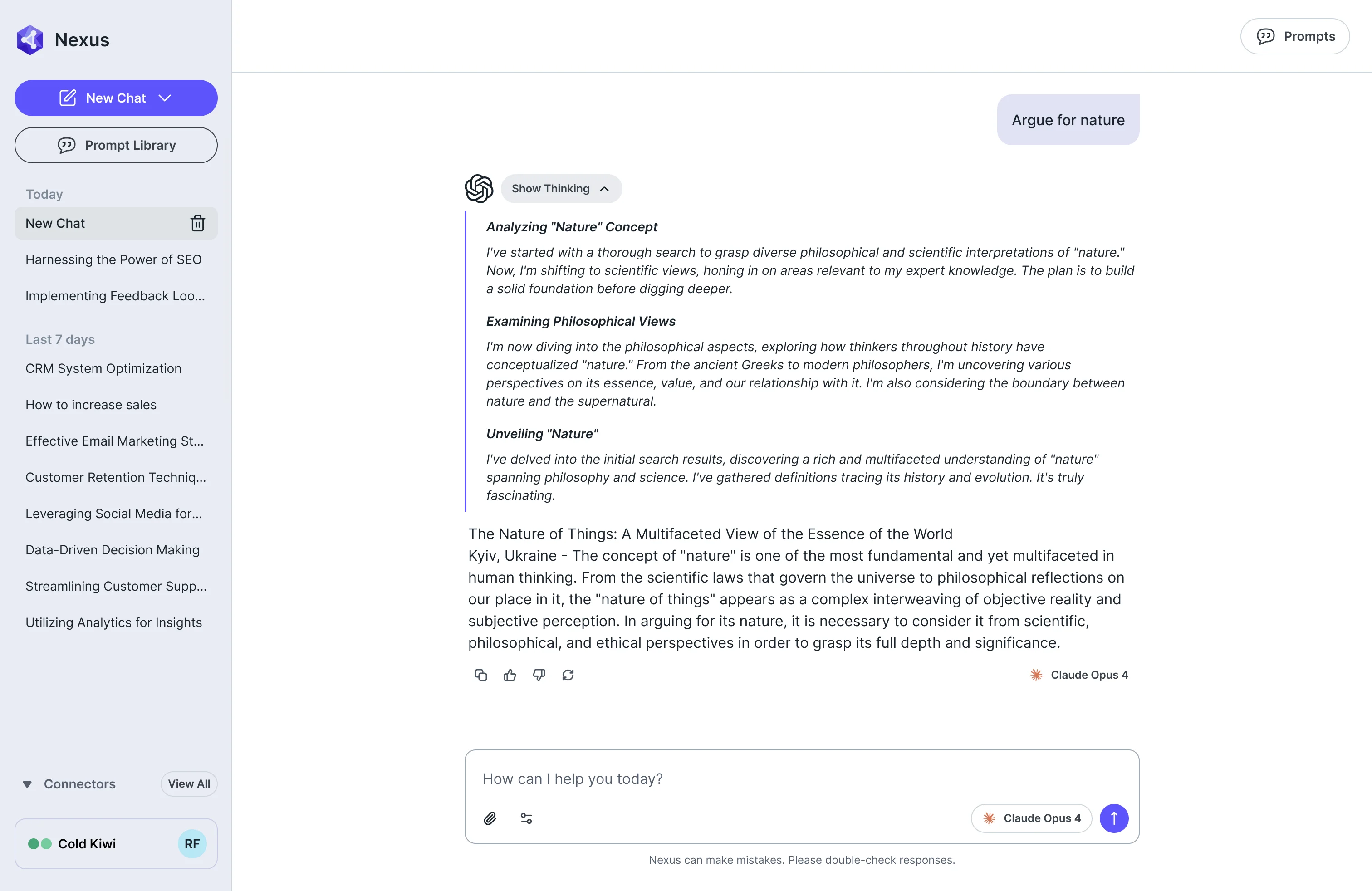
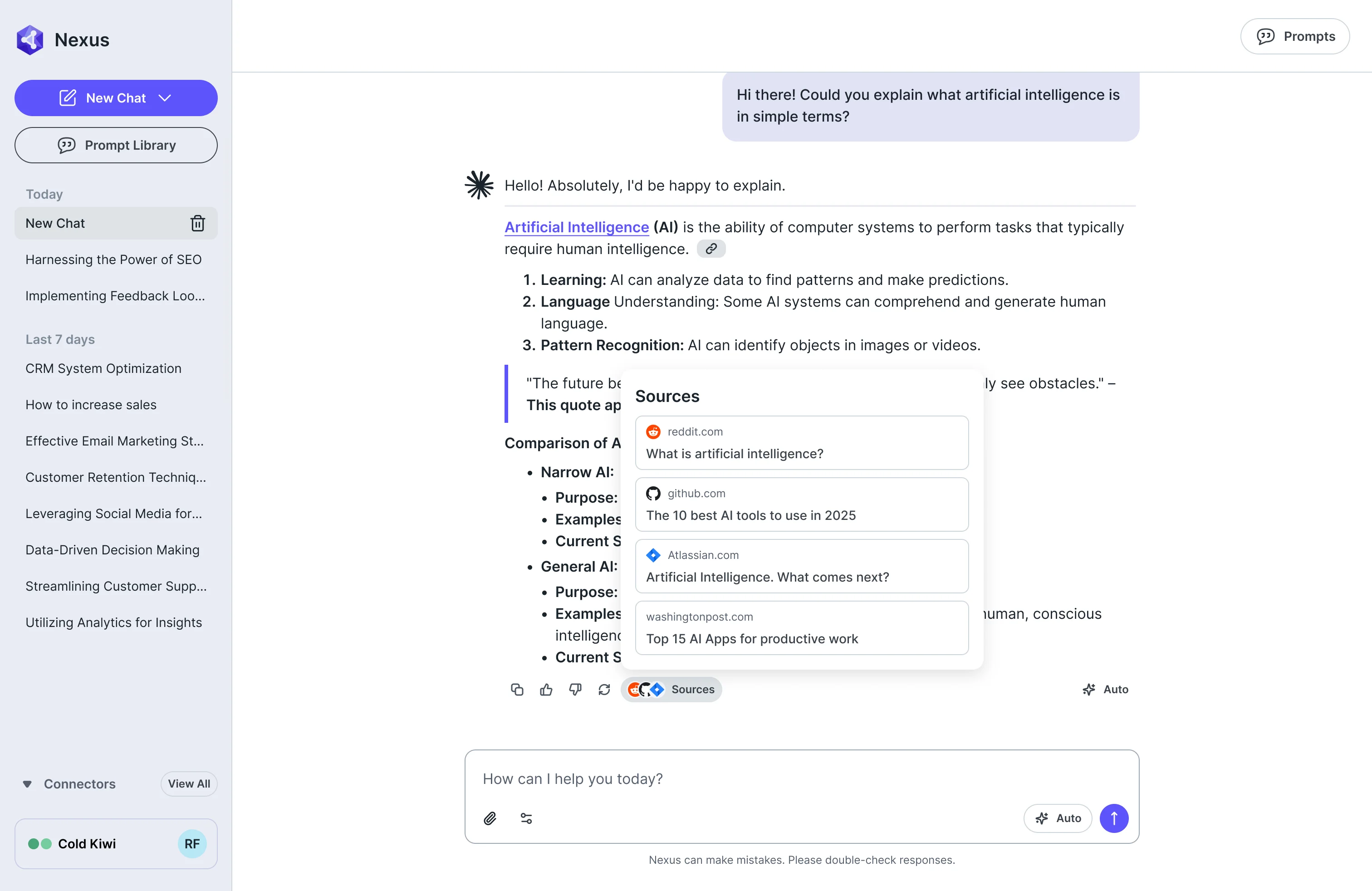
Reading an answer you can check
- Found
- An AI answer that arrives as a finished block gives an employee nothing to judge it by, and one that shows everything buries the answer.
- Decided
- Thinking as a collapsible step under the answer, and sources as a list one click away, both closed until asked for.
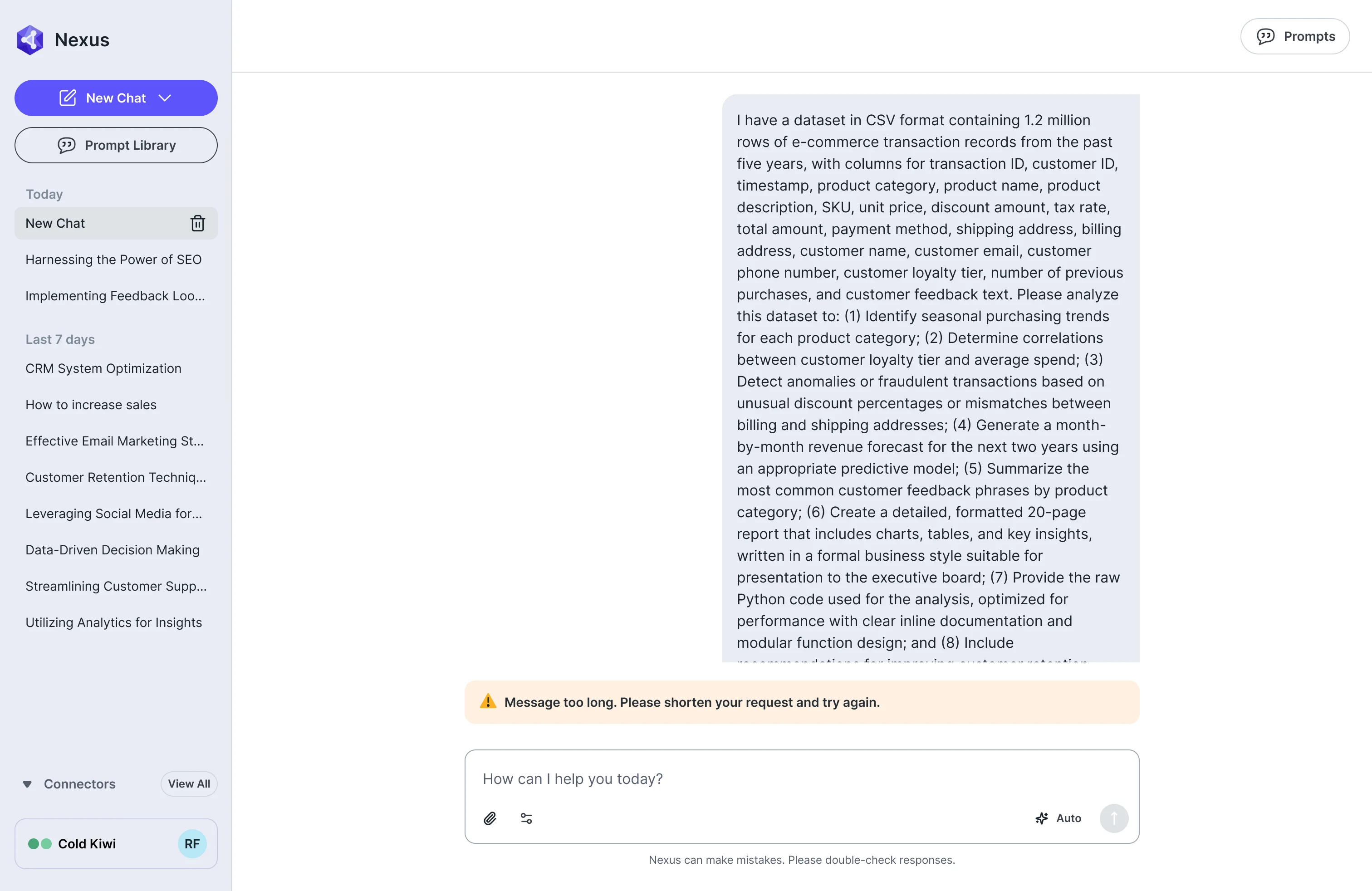
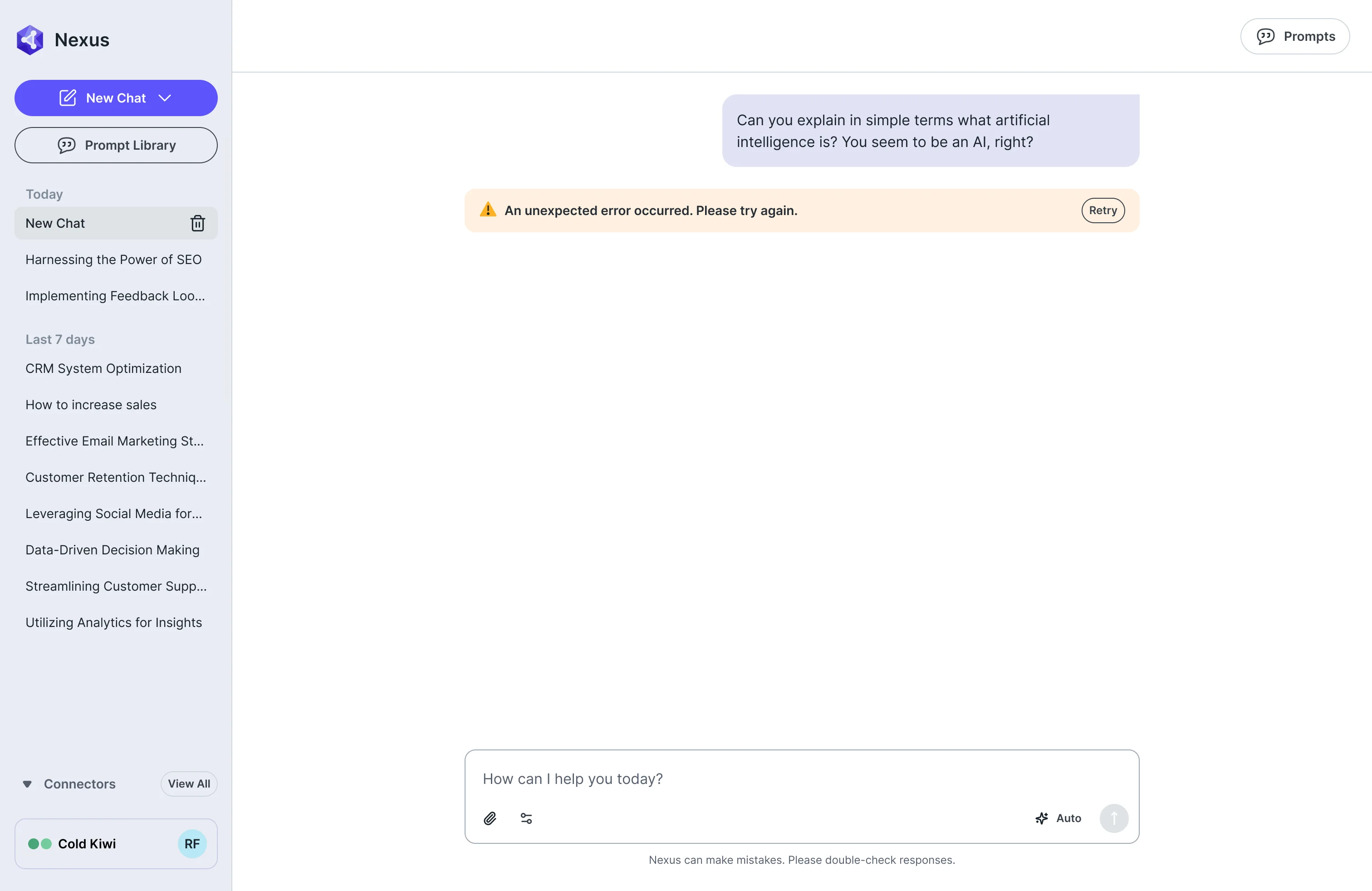
Stopping, and failing well
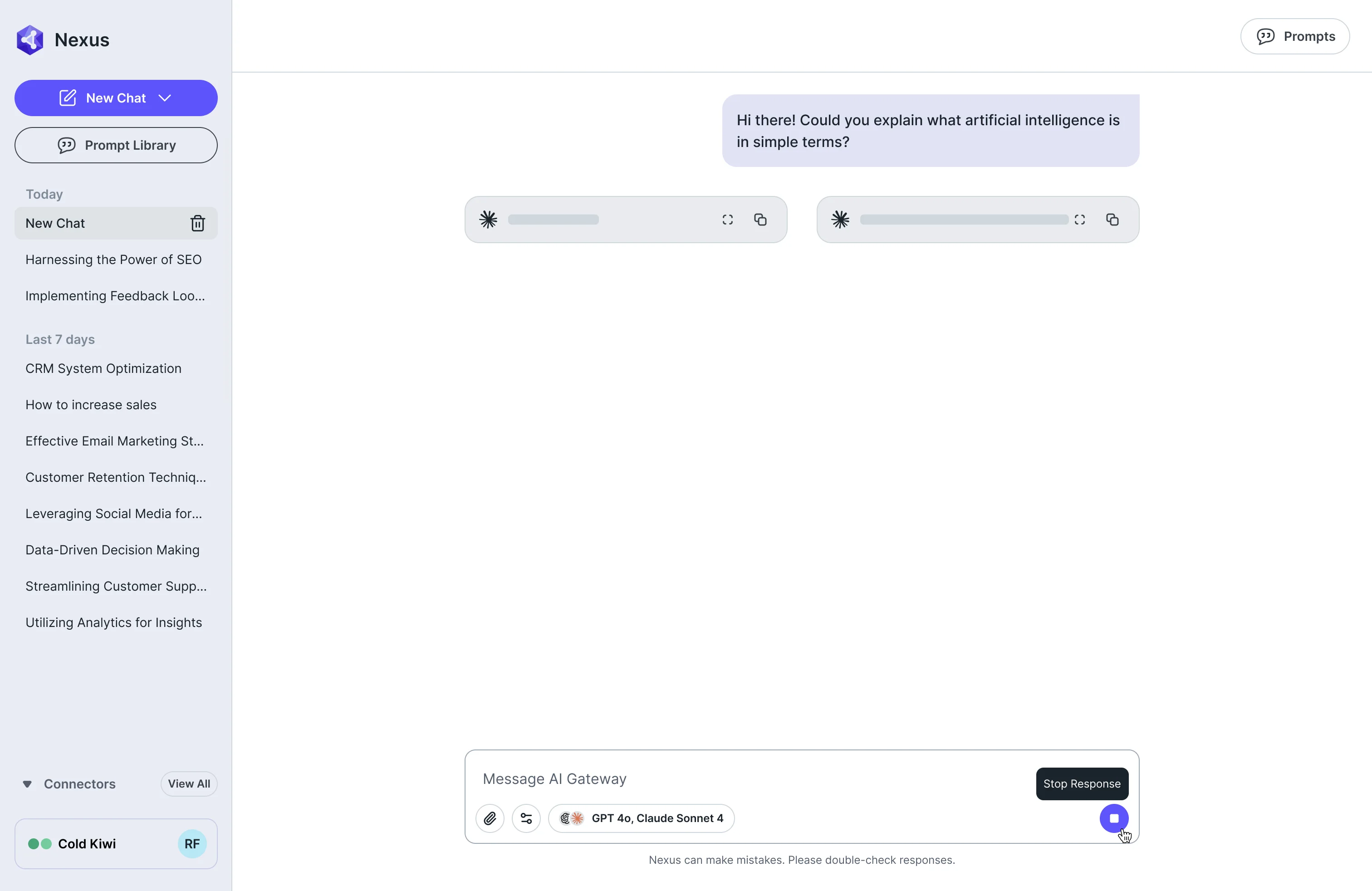
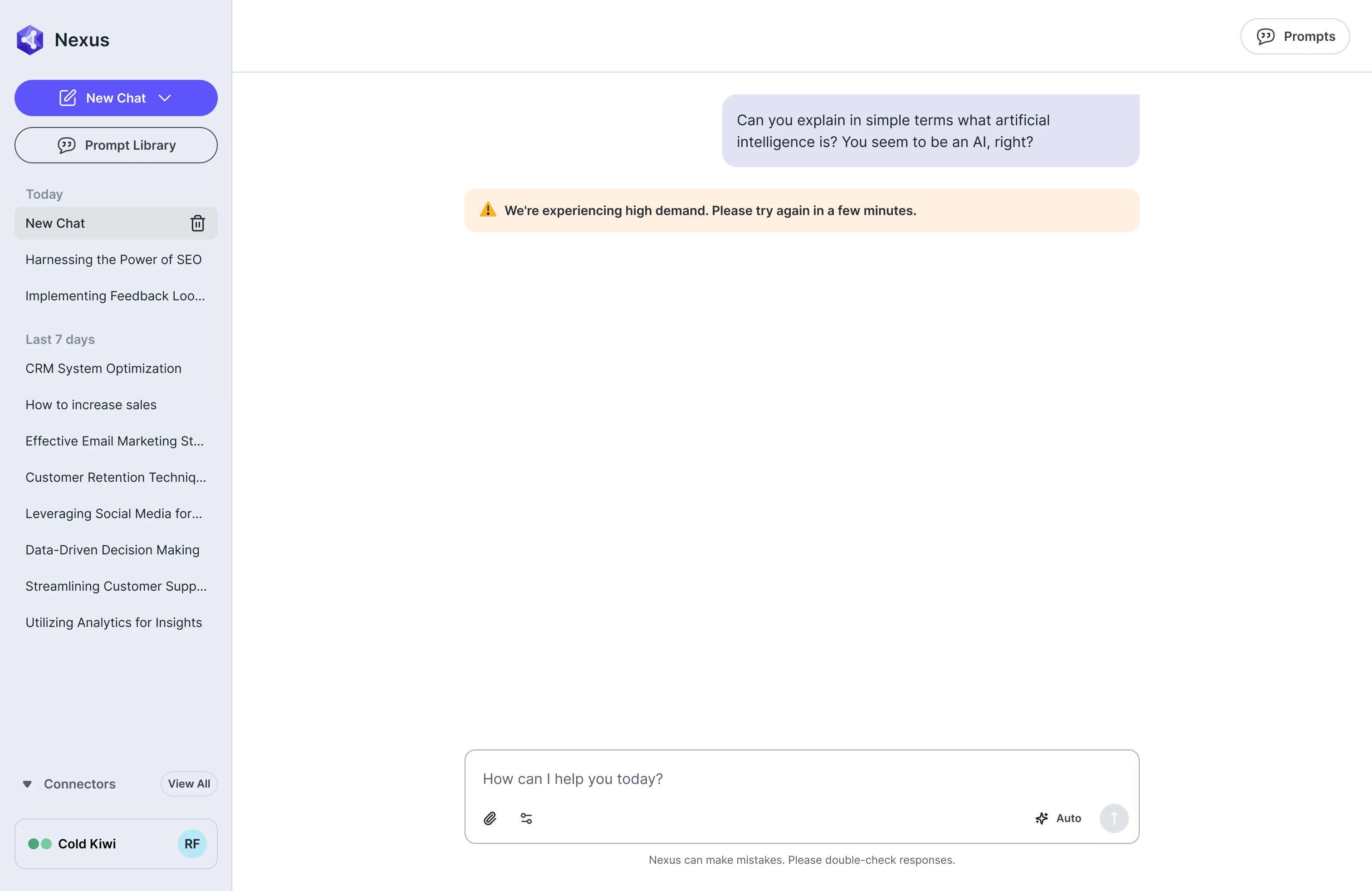
- Found
- A response can run too long, a service can be busy, a message can be too big, and unexplained each of them reads as a broken product.
- Decided
- A stop control in the message box while a response runs, and a banner above the message box for each failure that says what happened and what to do.
Finding a prompt worth reusing
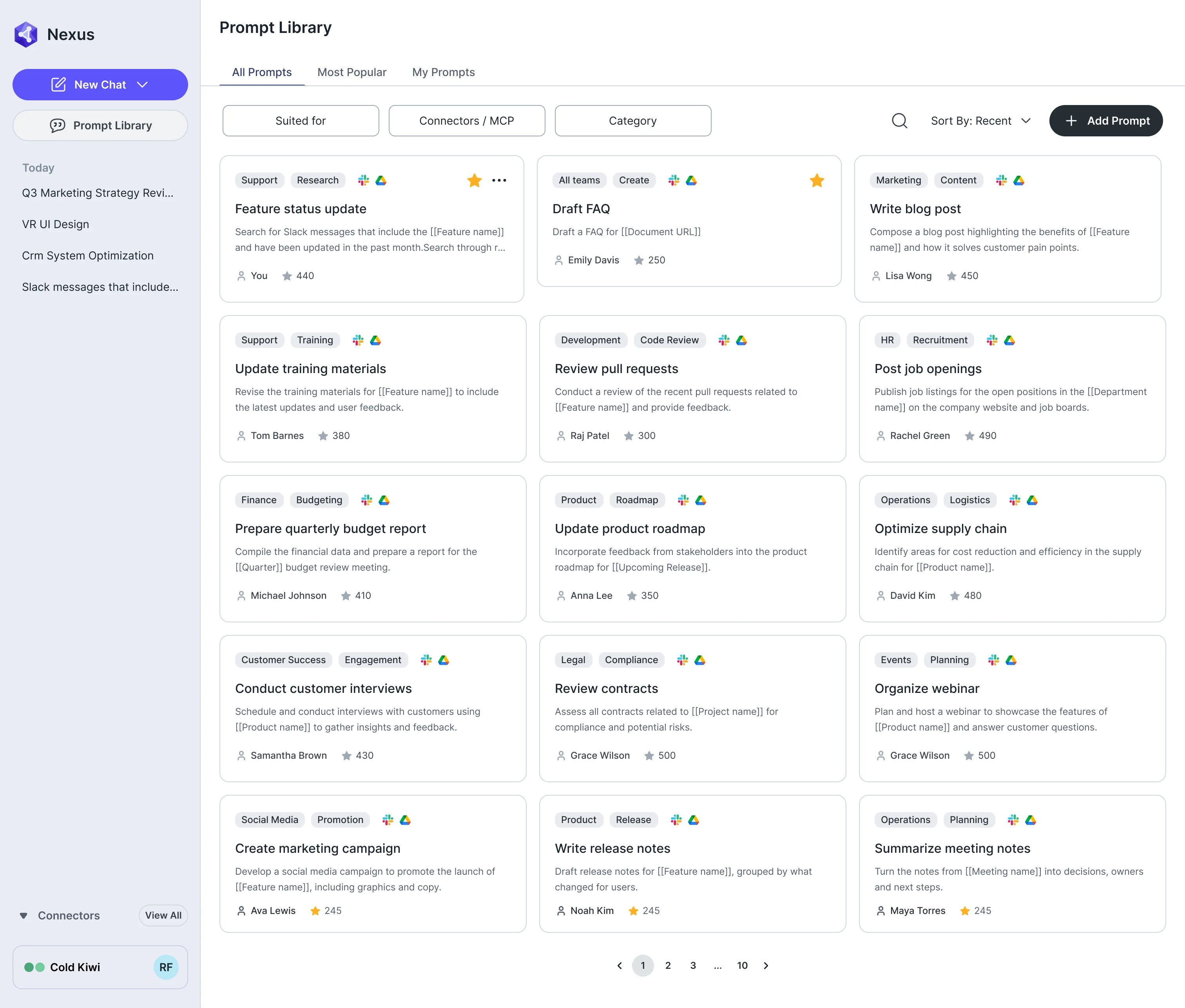
- Found
- A team’s best prompts live in private notes, and a list of them is useless unless a person can tell at a glance what each one is for.
- Decided
- A library of cards: each with its category, the apps it needs, who wrote it and how often it is used, filtered by who it suits.
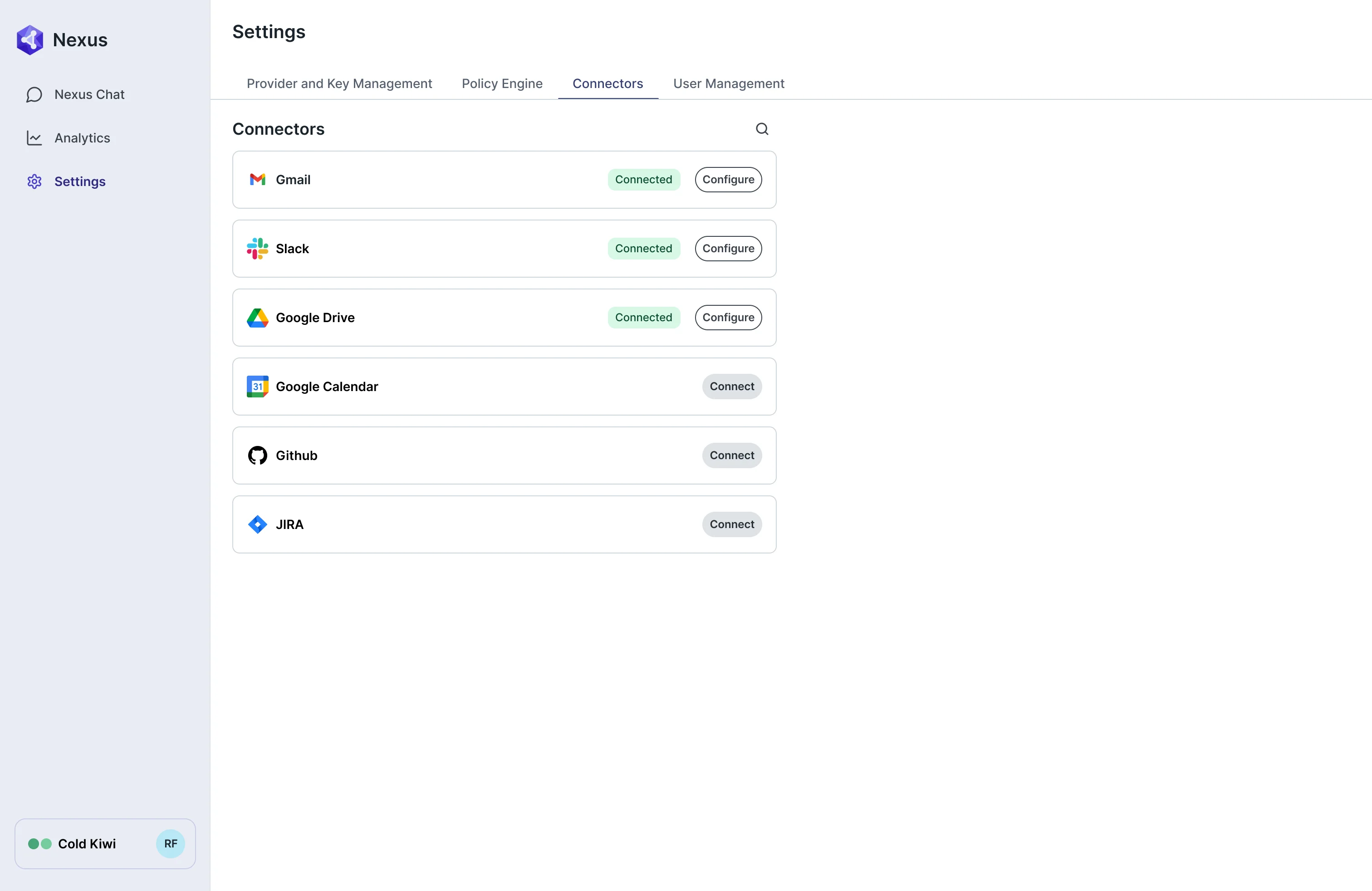
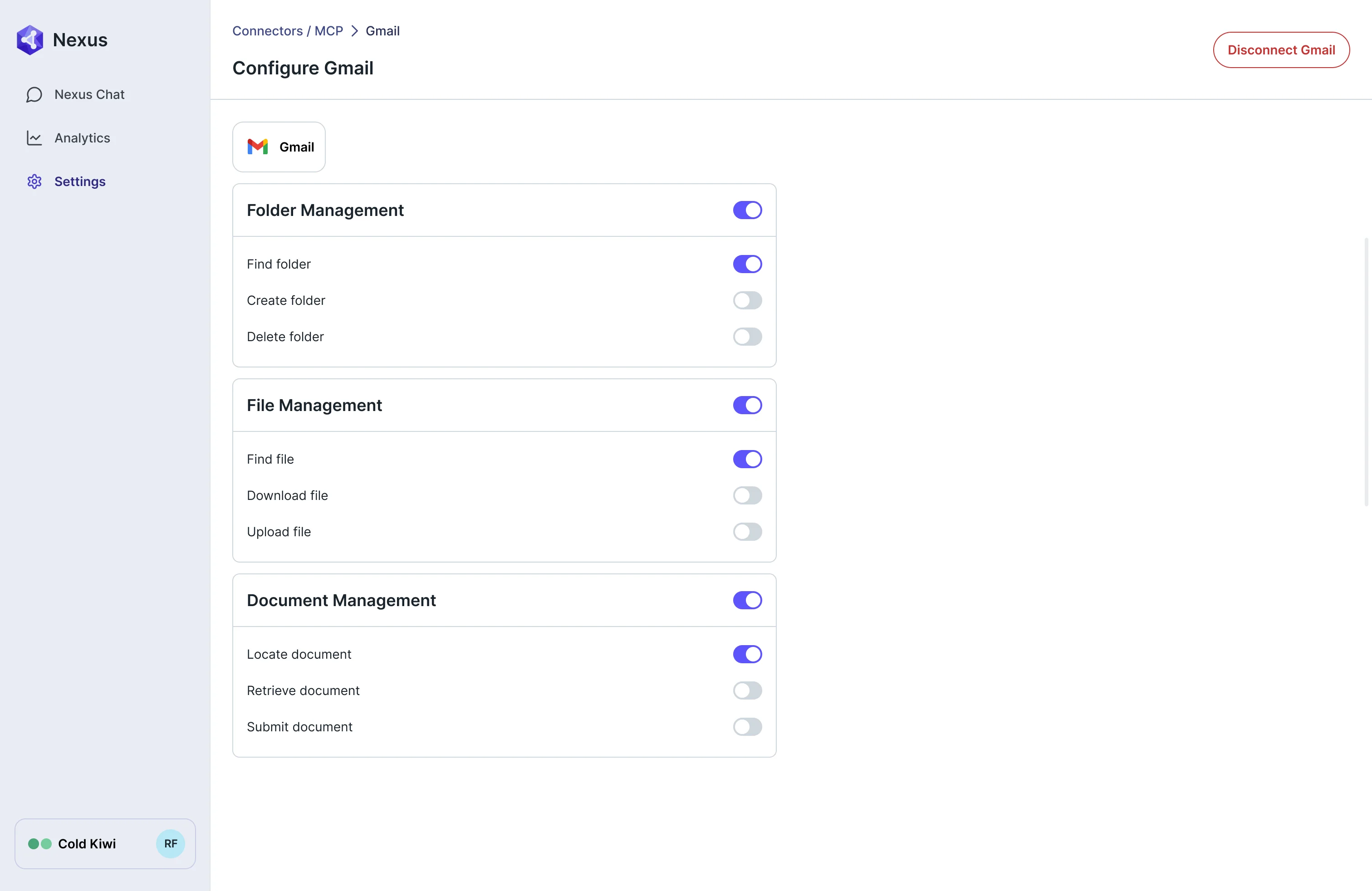
Setting up a connector as an admin
- Found
- A connector lets AI act inside a person’s tools, and an admin has to see which are connected and choose what each may do.
- Decided
- One list of connectors with their status, and a page per connector where each action is a switch grouped by what it touches.
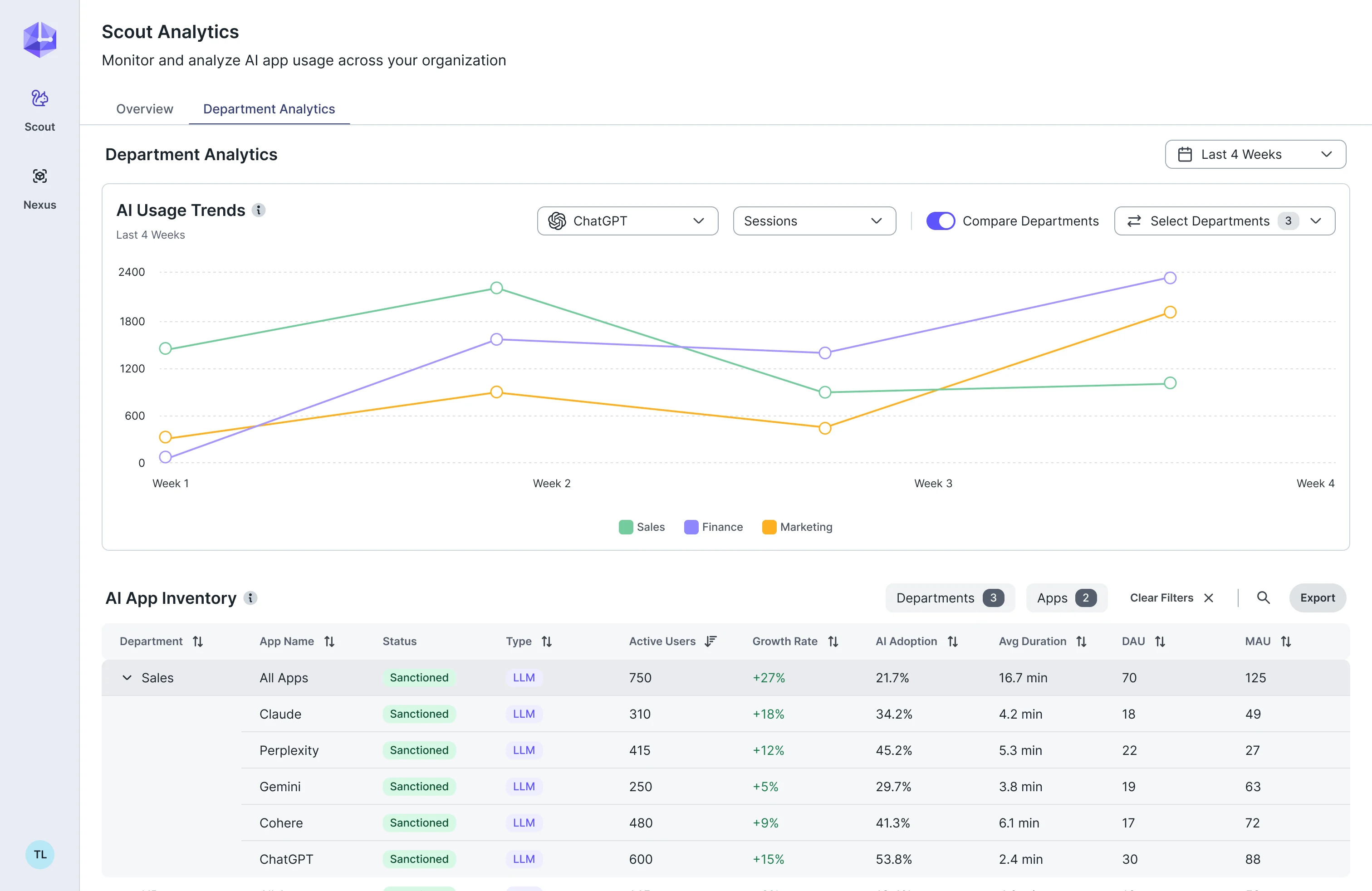
Reading usage by department and app
- Found
- Leaders need to know which departments use which AI apps and which apps are approved, and a wall of charts answers neither.
- Decided
- A usage trend by department and app, with the inventory of apps below it: status, type, users, growth and adoption in one filterable table.
One connector row, everywhere a tool appears
- Found
- A connector shows up in the chat, in a dialog and in the admin list, and drawn separately each of them would drift.
- Decided
- One row: the tool’s logo and name, one action on the right, and a status that means the same thing in every place. Added to the client’s foundations as a component with its states.
The same tool, in a menu and in a dialog
A tool row in the chat’s popover and in the authorise dialog.
-
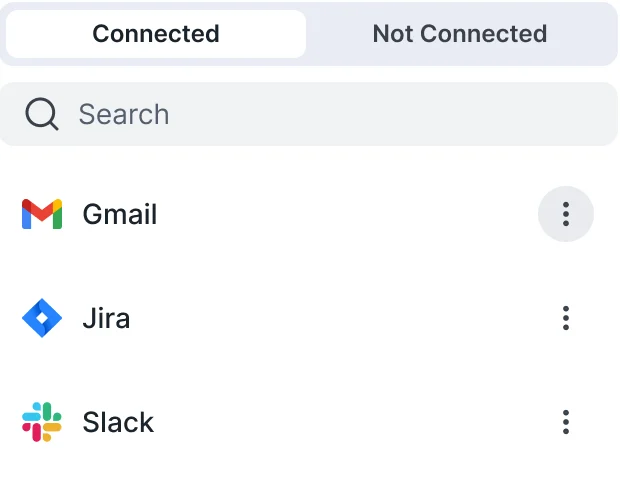
In the chat: Connected and not connected, one tab each. -
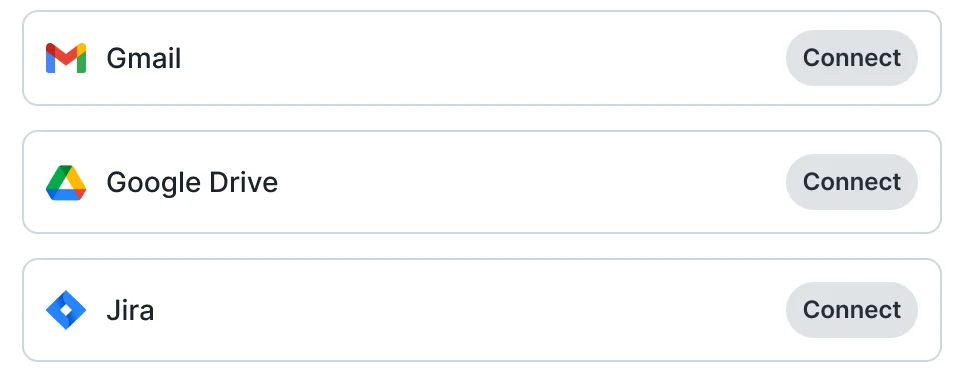
In the dialog: The apps a prompt needs, each with Connect.
A connector row, in two states
The admin list row, connected and not.
-

Connected -

Not connected
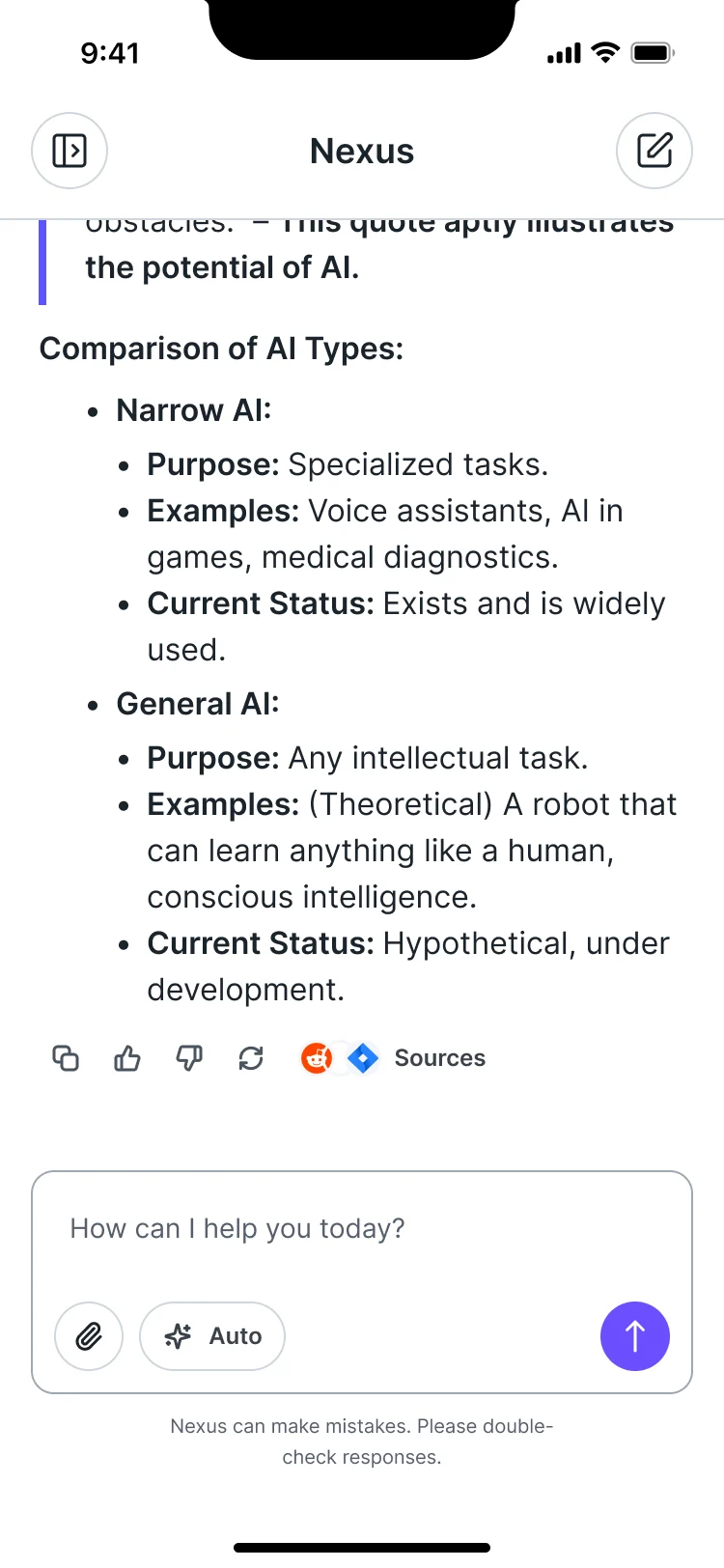
The same chat on desktop and on the phone
- Kept
- The order of the conversation: the question, the answer, and its sources under it, with the message box and mode at the bottom.
- Changed
- On desktop the chats and connectors sit in a side column; on the phone the column folds away and the message box carries the mode. Only selected screens were adapted, not the whole product.
Where the first stage ended up
The first stage of AI Gateway designed and handed off, with prototypes and a system that extends Larridin’s own. We designed it; development and launch were Larridin’s, and how each state behaves in production is theirs.
- employees, admins and the teams reviewing usage
- Three roles
- with thinking, sources, stop and failure states
- Answers
- discovered, authorised and configured
- Connectors
- prototypes, screen maps and Ready for Dev files
- Handoff
Will your users understand your AI, or just use it?
Model, mode, sources, connectors and roles: we designed AI Gateway so an employee can tell which is which. Bring us your AI workspace, and we’ll show where a user cannot tell what the product just did.
More work like this
Three more products where dense data and technical states had to stay readable.
-
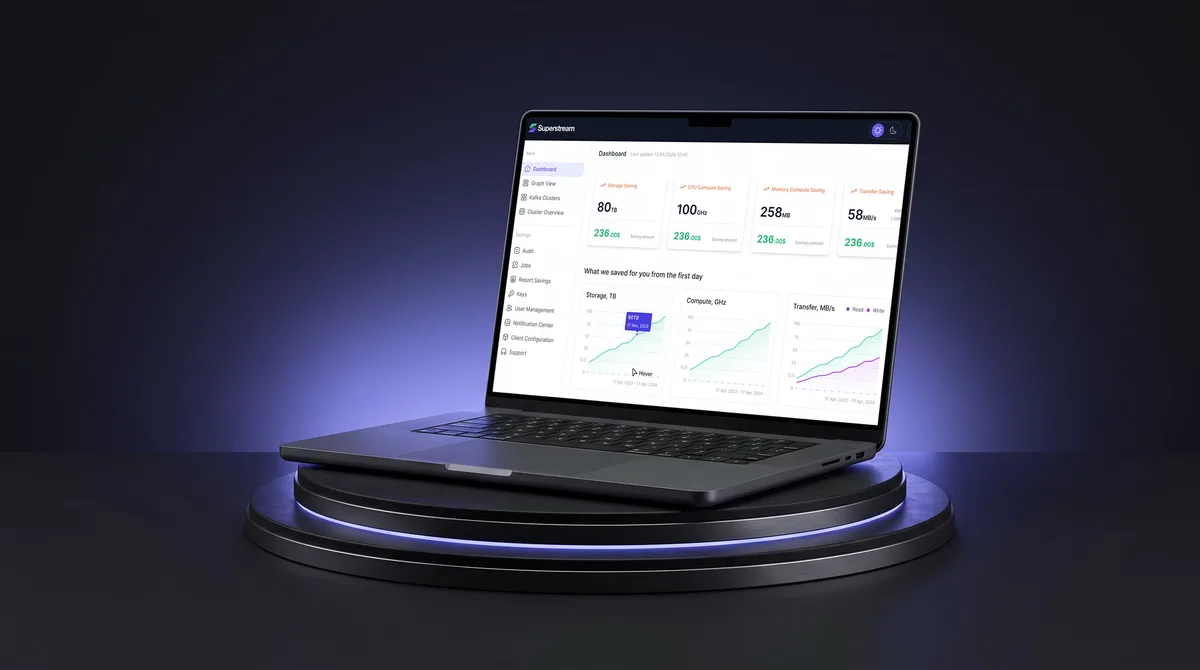
AI Hi-Tech · SaaS
Superstream
Made a Kafka management platform’s technical data readable for DevOps teams, with a design system and handoff.
- 3000+ Screens designed
- 1500h+ Design hours
-
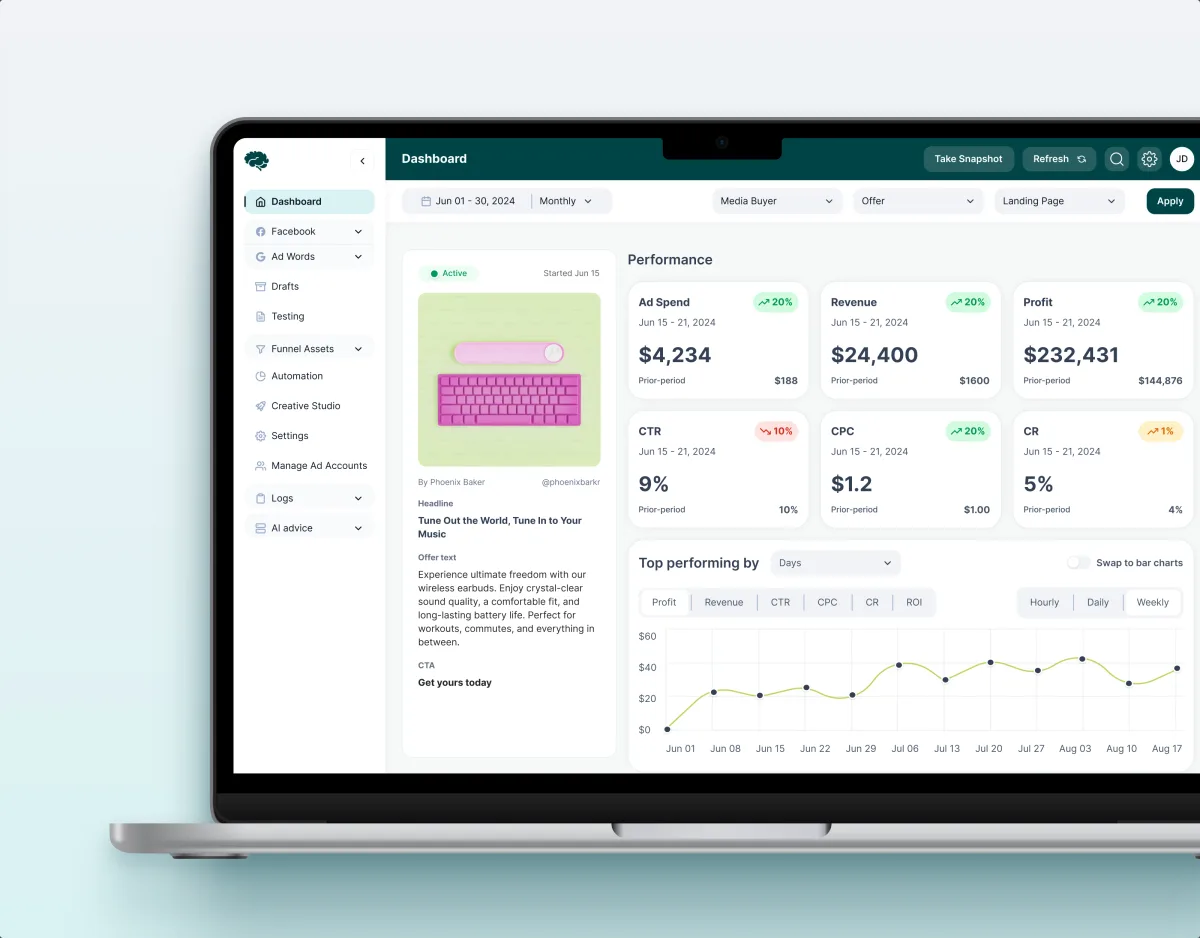
MarTech · Ads analytics · Web SaaS
Concussion Media
Redesigned an existing analytics product around the dense numbers its users act on.
- 400+ Screens and states
- 11 Modules designed and approved by the client
-
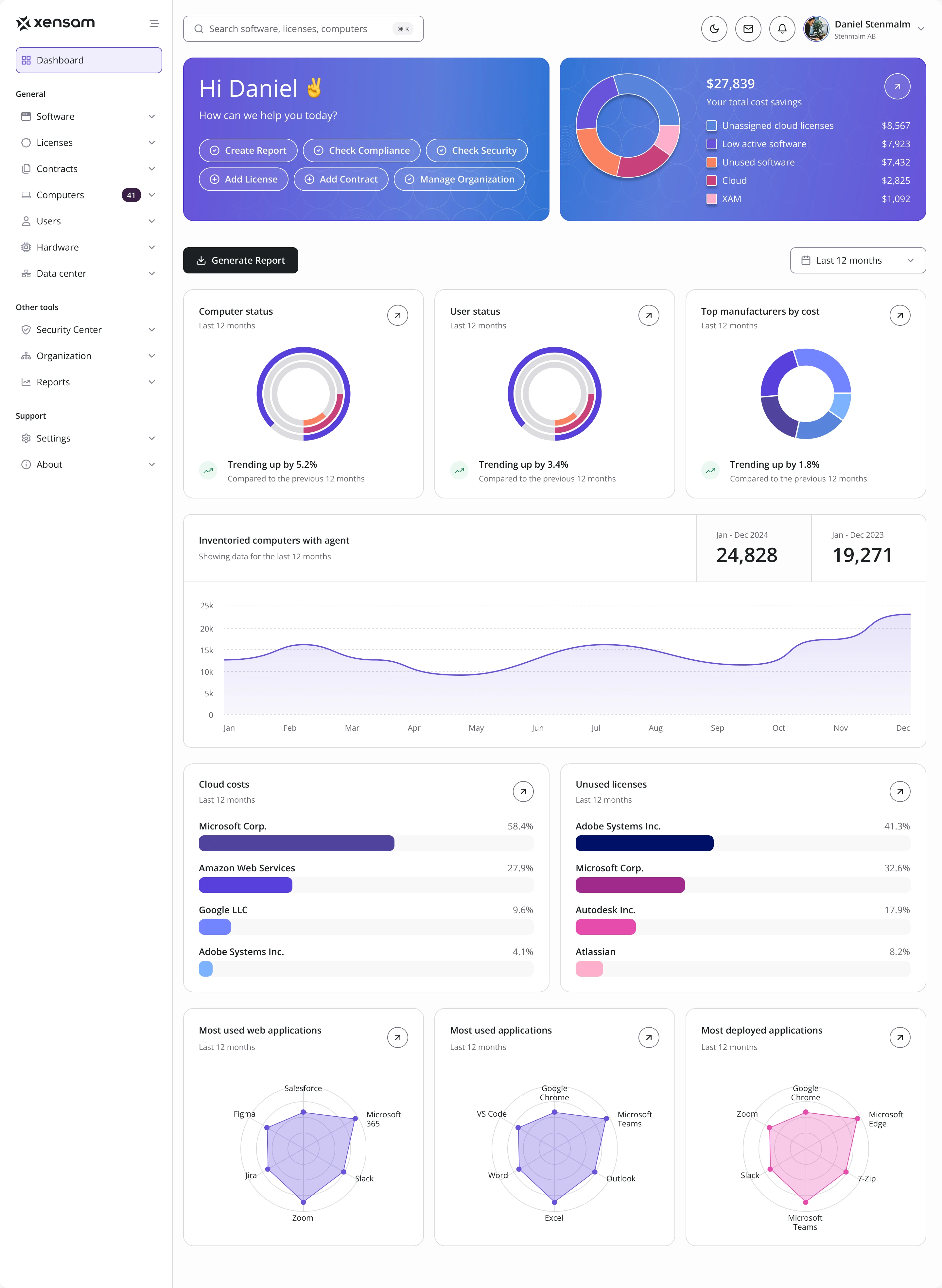
AI · SAM · Web SaaS
Xensam
Redesigned an enterprise asset-management platform for two roles, with a full design system.